
If you encounter a WordPress bug, an error message or a white screen, don't panic! This article lists the most common WordPress errors encountered by WordPress users, and gives a starting point for fixing them.
THE cost of a WordPress site does not always understand site maintenance. But many bugs are easily fixed, provided you know where to look.
The white screen on WordPress
PHP errors and database errors can manifest as a white screen, a blank screen with no information, commonly known in the WordPress community as WordPress White Screen of Death (WSOD).
This is the most impressive bug, because in the absence of a clear error message, panic can quickly take over.
Before resorting to desperate measures, there are 2 probable reasons for this problem.
1. An incompatible plugin
A plugin may cause a conflict with WordPress or another plugin. If you can access the administration:
- disable all your plugins
- then reactivate them one by one to identify which one is causing the problem
If you no longer have access to the administration panel, connect to your site via FTP.
Go to the folder: wp-content/plugins
Rename the folder plugins in plugins_old.
This manipulation will disable all extensions.
2. A problem with your theme
Your WordPress Theme may be the cause of the problem. This is especially likely if you experience the white screen of death after activating a new theme.
Log in to WordPress admin and activate the default WordPress theme.
If you cannot access administration, access your website via FTP and navigate to the folder /wp-content/themes/. Rename the active theme folder, this will deactivate it.
Error connecting to database
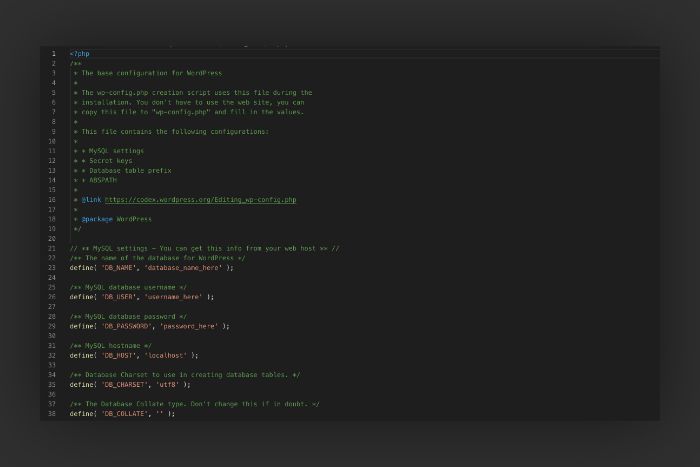
The error establishing a database connection is usually caused by an error in your file wp-config.php. Access your site in your FTP client. Open wp-config.php and make sure the following information is correct:
- Database name
- Database username
- Database password
- Database host
If this information is correct, it may be necessary to reset MySQL password or check the status of the database server with your host.
Also read : The best method to resolve a bug
WordPress site does not appear in Google
This isn't really a WordPress bug, but sometimes your site doesn't appear in search engines like Google.
Here's what can prevent your site from appearing in search results:
1. Your site is too new
It may take several days or even weeks before it starts appearing in search engine results.
Are you impatient? You can create an account on Google Search Console. When you register and enter the URL of your sitemap.xml, you can request to browse your site. However, there are so many requests that the feature doesn't always work out of the box.
2. Your website has “no index” tags
It is possible to prevent search engines from indexing a site or certain pages using a tag noindex.
This option is sometimes activated during the creation of a site to prevent pages under development from appearing in search results. If it is not deactivated afterwards, your site may remain invisible on Google.
In WordPress, check this setting in particular:
Settings → Reading → “Ask search engines not to index this site”.
If this option is checked, your site may not appear in the results.
3. Your website has been penalized by Google
In certain rarer cases, a site may be penalized or deindexed if it does not respect the quality rules of search engines.
Here are the different ways Google can remove your site from results search:
- Deindexed : When your domain is completely removed from Google.
- Penalized : When your domain or page still exists but none of your pages can be found by direct search queries. This penalty can be automatic using the Google algorithm or applied manually by a Google quality engineer.
- Sandboxed : Your domain or page hasn't been deindexed or penalized, but the traffic you were receiving from Google suddenly drops dramatically.
If your site is affected, you will usually receive a notification in Google Search Console. You will then need to correct the reported issues before requesting a review of your site.
If you do not know how to go about it, it is once again strongly recommended to call a Worpdress expert.
The site is stuck in maintenance
A common bug: You update your site and plugins, and those updates appear to be complete. You go to your site but it is stuck in maintenance mode, and nothing in the admin allows you to exit it.
Fortunately, the solution is simple. Go and check on the FTP side, in the root directory of your site, if there is not yet a .maintenance type file. If so, deleting this file should resolve the issue.
The site is very slow
A slow WordPress site can have many causes. In some cases, a technical audit is necessary.
However, you can already check several points.
1. Install a caching system
WordPress pages are dynamic: they are generated on each visit. This means that the server must perform several operations to display a page. When traffic increases, it can slow down the site significantly.
A cache plugin allows you to generate static pageswhich can make your site 2 to 5 times faster.
2. Optimize images

Images bring your content to life, but they can also slow down your site significantly if they are not optimized.
Before importing them onto your site:
- compress them
- resize them for web
An image taken directly from a camera can weigh several MB whereas it could be reduced to a few hundred KB without visible loss of quality.
3. Make your updates
It is important to keep your extensions, and WordPress, up to date: some updates indeed include notable improvements in the loading speed of different scripts.
4. Use snippets instead of the whole text
By default, WordPress often displays full post content on the homepage or archive pages.
This can slow down their loading.
By displaying only extracts from articlesyou reduce the size of these pages and improve their loading speed.
The site is overrun with spam in the comments
If you allow comments on your site, you risk receiving spam. As your site grows in popularity, it is even likely that spam will become a problem. If you allow comments, sooner or later you may receive spam. spam.
Most of these messages are sent automatically by bots that post short comments containing links.
Spam can cause several problems:
- it harms the credibility of your site
- it complicates exchanges between real users
- some links may be malicious
Fortunately, several solutions exist.
1. Limit the number of links allowed per post
Most of comment spam are designed to add links to your comments section and encourage people to click on them. Therefore, one way to combat spam is to allow fewer links in your comments.
In WordPress settings, you can limit the number of links allowed in a comment to reduce this type of spam.
2. Create a list of “blacklisted” words
Spam comments contain a lot of recognizable keywords. It's easy to spot them and prevent them from appearing on your website. You can simply create a blacklist of words, and your site will mark any comments containing any of them as spam.
Of course, it is important to choose the words on your blacklist carefully, so as not to erase legitimate comments.
3. Restrict comments to registered users
The goal of most spammers is to post on as many pages and sites as possible. If you can make it more difficult add their comments to your site, they will move on to the next target. You can limit commenting privileges to people who have registered on your site.
This places an additional barrier between spammers and your comments section. Captcha is also a good way to limit spammers, there are several alternatives to Captcha.
4. Set up comment moderation
Comment moderation is when some (or all) comments must be approved by a person before they are allowed to appear on your site. If you have the time and resources, this can be a profitable strategy.
5. Use an anti-spam plugin
These tools can be a powerful way to stop comment spam and can sort good comments from bad ones for you. Many WordPress installations come with Akismetand for good reasons!
6. Change to another commenting system
This method won't work for all sites, but some third-party commenting systems, like Akismetcan help eliminate most spam for you. Another option is to use Facebook comments on your site.
These problems, although common, do not all have the same severity or the same repercussions on your site. While some are easily bypassed, others require advanced knowledge of WordPress: you can ask a freelancer to carry out a one-off mission for you.
The most common WordPress bugs
Here is a list of others WordPress bugs that you may encounter:
- Image bug in WordPress: it sometimes happens that images have mandatory dimensions and that they end up distorted
- WordPress bug with responsive: if your theme or builder plugin is not up to date, responsive may no longer respond correctly
- Child theme bug: to modify your WordPress theme, you often create a child theme. If this is not done, it may create irreparable bugs.
- Bug following a WordPress plugin update: a plugin update can make the site completely unusable. In this case, you must deactivate the plugin by renaming or deleting its folder via ftp.
For these WordPress bugs, sometimes a little more sensitive, it is advisable to call a WordPress developer to avoid handling errors.
Need help fixing a WordPress bug?
If you need help fixing a WordPress bug, simply submit a project on Codeur.com!
Of the freelance WordPress developers experienced professionals can help you repair your WordPress site.