
Knowing how to schedule social media posts on different platforms can really help you gain more traction, even when you are not online and when your audience is most active. However, while scheduling, you will soon realize that content scheduling is not the same for different platforms. Each one has its own peak time and preferences.
To achieve this, you need a good scheduling tool to help you stay on point with a consistent content calendar and regular posting, which is the backbone of social media success.
In this blog, you’ll discover everything you need to know about scheduling social media posts—from why it matters to how to do it right. We’ll walk you through the best tools available (including AI-powered options), smart scheduling tips, and how to build a content calendar that keeps your strategy on track. But first, let’s dive into why scheduling your social media posts is a game-changer for any business or brand.
Social media scheduling is the game-changing secret. It’s the art of mapping out your posts in advance and using a smart tool to automatically publish them exactly when your audience is most active. Think of it as your personal social media autopilot, freeing you up to focus on what truly matters.
It offers advantages like better time management and the ability to maintain a consistent online presence.
Firstly, when you schedule social media posts across all platforms, you free yourself from all the burdens that are keeping you from creating a remarkable social media campaign.
It eliminates manual work that demands manpower and time. With the help of a social media scheduler, everything can be easily automated to post content across multiple platforms.
Below are more reasons to schedule your social media posts in advance.
To Tailor Content for Each Platform
When you schedule posts in advance, you can manage every social media channel with different strategies and content. This way, you stay relevant and attractive to your audience.
To Organize Your Content Calendar
It’s heartbreaking to see your strategy scatter because of a last-minute hassle. Scheduling social media posts beforehand protects your calendar from last-minute panic. You can use content calendar tools to schedule and organize your posts for odd hours for a global audience.
To Schedule Recurring Posts
By setting up recurring posts, you can ensure a consistent presence on social media without having to remember to publish the same content repeatedly. This frees up your time to focus on creating new, unique content.
To Post at the Best Time (for every channel)
Timing is everything. Posting at the best time for each social media channel can dramatically boost your reach and engagement. By using data-driven insights, you ensure your content goes live when your audience is most active.
To Streamline Your Content Calendar
By planning your content in advance, you can avoid the pressure of creating posts at the last minute, ensuring that your publishing schedule stays on track, even during your busiest times.
To streamline this entire process, you can utilize a social media calendar template to effectively map out all your content, themes, and key dates in one centralized place.
Scheduling social media posts is a strategic way to streamline your content calendar. By planning ahead, you can maintain a consistent online presence, saving time and ensuring your message reaches the right people at the right moment.
You can schedule social media posts either using the native tool of the platform or by utilizing a social media scheduling tool such as SocialPilot, Hootsuite, Buffer, and more.
In the following sections, we will discuss both the above-mentioned methods to help you schedule posts on social media effectively.
Let us have a look at how to schedule social media posts using native platforms:
Scheduling Posts on Facebook
On Desktop:
Step 1: Log in to your Facebook business page using your account credentials to access features.
Step 2: From Meta Business Suite, open the planner tool to view upcoming posts and schedules.
Step 3: Create your post by adding text, media, links, and customizing it for your audience.
Step 4: Choose your desired date and time, then schedule the post for automatic publishing.
On Mobile:
Step 1: Log in to your Facebook business account through the mobile app for access.
Step 2: Create your Facebook post by writing content, adding visuals, and adjusting sharing settings.
Step 3: Select the scheduling option, set your preferred publishing time, and confirm to schedule.
While these steps will help you schedule your Facebook post, you can gain deeper insights by exploring this comprehensive guide on how to schedule a post on Facebook.
Scheduling Posts & Reels on Instagram
On Desktop:
Step 1: Open Meta Business Suite and sign in with your Facebook account.
Step 2: Select “Create Post” from the dashboard.
Step 3: In the ‘Post to’ section, choose Instagram as your posting platform.
Step 4: Upload your media files and preview how the post will appear on the right panel.
Step 5: Scroll down to the scheduling options and click “Schedule.”
Step 6: Set the preferred date and time for your post to go live.
Step 7: Confirm by clicking “Schedule.”
On Mobile:
Step 1: Open the Instagram app, tap Create, and choose Post or Reel.
Step 2: Select your photo or video, then tap Next (Android) or Next (iOS). Add captions, filters, or effects.
Step 3: Go to More options (Android) or Advanced settings (iOS).
Step 4: Toggle on Schedule this post.
Step 5: Choose a date and time, up to 75 days in advance.
Step 6: Tap Done.
Step 7: Press the back button.
Step 8: Tap Schedule to confirm your post or reel.
These steps will help you schedule Instagram posts and reels, but for a detailed walkthrough, explore our comprehensive guide on how to schedule a post on Instagram.
Scheduling Posts on X with X Ads
Step 1: Log in to ads.x.com.
Step 2: Go to “Creatives” and then to “Posts.”
Step 3: Click “New Post” in the top-right corner. You’ll be redirected to the Post Composer to add text, images, videos, or cards.
Step 4: Decide whether to select “Promoted-only.” If enabled, your post will only appear to audiences targeted in a Promoted Ads campaign, not organically to followers. If unselected, it will publish as an organic post. (Note: You can only unselect “Promoted-only” while logged into your ads account.)
Step 5: Once your post is ready, click the down arrow next to “Post.”
Step 6: From the dropdown, select “Schedule.”
Step 7: Choose your preferred date and time for the post to go live.
Scheduling Posts on LinkedIn Homepage
On Desktop:
Step 1: Click “Start a post” at the top of your LinkedIn homepage. A Create a post window will appear.
Step 2: Enter your content in the “What do you want to talk about?” field.
Step 3: Click the clock icon in the lower-right corner to open scheduling options.
Step 4: In the Schedule post window, choose your desired date and time for publishing. The time must be set between 10 minutes and 3 months from the current moment (rounded to the nearest interval). You can also manually enter an exact time instead of using the 30-minute increments.
Note: The scheduled time will be standardized in UTC based on your device’s time zone.
Step 5: Click Next. You’ll now see the scheduled date and time displayed above your post.
Step 6: Click Schedule to confirm.
Step 7: A confirmation pop-up will appear in the lower-left corner of the screen.
On Mobile:
Step 1: Tap Post in the navigation bar. The Share post window will appear.
Step 2: Enter your content in the “What do you want to talk about?” field.
Step 3: Tap the clock icon in the upper-right corner.
Step 4: In the Schedule window, choose the date and time you want the post to go live. The selected time must be within 10 minutes to 3 months from now (rounded to the nearest interval). You can also enter an exact time instead of using the 30-minute increments.
Step 5: Tap Next. The scheduled date and time will appear above your post.
Step 6: Tap Schedule in the upper-right corner. A confirmation pop-up will appear.
Scheduling Videos & Shorts on YouTube with YouTube Studio
On Desktop:
Step 1: Sign in to YouTube Studio.
Step 2: Click create, then select upload videos.
Step 3: Choose the video file you want to upload and fill in the video details.
Step 4: Click the schedule card.
Step 5: Set the desired date, time, and time zone for your video to be published.
Step 6: Click Schedule to confirm.
On Mobile:
Step 1: Sign in to YouTube Studio (desktop) or the YouTube app.
Step 2: Click the Create icon and then go to Create a Short.
Step 3: Select the video file from your device and add details such as title and description.
Step 4: Locate the Visibility or Schedule option and select Schedule.
Step 5: Choose your desired date, time, and time zone for publishing.
Step 6: Tap or click Schedule to confirm and finalize your post.
These steps will help you schedule YouTube videos, but for a complete step-by-step guide, check out our comprehensive guide on how to schedule a post on YouTube.
Scheduling Posts on TikTok with Native Application
On Desktop:
Step 1: Click Upload at the top of the page.
Step 2: Select Choose video to upload or Select file.
Step 3: Pick the video you want to upload from your device.
On Mobile App:
Step 1: In the TikTok app, tap the Add post (+) button at the bottom.
Step 2: Choose the video length, or tap Upload to add a video from your device and skip to
Step 3: Tap the Record button to capture your video. Once done, tap the Continue (✓) button.
Step 4: Enhance your video with filters, sounds, text, stickers, effects, or advanced editing tools.
Step 5: Tap Your Story to post directly to Stories, or tap Next for more options, including:
- Adding a description
- Inserting hashtags
- Tagging people
- Adding a location
- Adding a link
- Managing privacy settings
Step 6: Tap Post to publish your video, or select Drafts to save it privately in your profile.
If you’d like to explore more about scheduling videos on TikTok, take a look at our comprehensive guide on how to schedule a post on TikTok.
Scheduling Posts on Threads with Native Application
Step 1: Begin by creating a new post with your desired content, media, and captions.
Step 2: Navigate to the post settings and locate the scheduling option available within the platform.
Step 3: Click on the “Schedule” button to activate publishing options for a future date and time.
Step 4: Set your preferred date and time for the post to automatically go live.
If you want to learn more about the best ways to schedule posts on Threads, check our
comprehensive guide on how to schedule a post on Threads.
Scheduling Pins on Pinterest
On Desktop:
Step 1: Log in to your Pinterest business account.
Step 2: Click Create in the left corner of the screen.

Step 3: If you’re using a business account, click the menu (☰).
Under Create, select Create Pin.
Step 4: Click the upload icon (arrow inside a circle) to add your image or video. You can upload up to 10 images, and Pinterest will automatically create one Pin per image.
Note: If you want to combine multiple images or videos into a single video Pin, use the Pinterest mobile app.
Step 5: Add your Pin details, such as title, description, alt text, link, and board.

Step 6: Scroll down and select Publish at a later date.

Step 7: Choose the date and time when you want your Pin to go live. Click Publish to schedule your Pin.
On Mobile:
Step 1: Open the Pinterest app on your device and log in to your Pinterest business account.
Step 2: Tap the plus (+) icon at the bottom of the screen and select Pin.
Step 3: Choose one or more images or videos from your device.
- You can also tap the camera icon to capture a new photo or video.
- If you select multiple images or videos, Pinterest will automatically combine them into a single video Pin.
Step 4: Tap Next.
Step 5: Use the editing menu at the bottom to add text, effects, or make adjustments, then tap Next again. If you’re creating a single-image Pin, this editing step may be skipped.
Step 6: Add your Pin details, such as title, description, link, and board.
Step 7: Next to the Schedule date or Schedule publish date, tap the arrow icon.
Step 8: Select your preferred date and time for publishing. Tap Done.
Step 9: Tap Schedule.
Step 10: Review the selected date and time, then tap Schedule again to confirm.
One of the most effective ways to manage your content is to schedule social media posts using a dedicated tool. These platforms automate publishing, saving time and ensuring a consistent presence. Moreover, it offers a free trial so you can try its scheduling capabilities without any pressure.
Let us look at how you can use the SocialPilot scheduler and the SocialPilot AI scheduler to make scheduling easy for you.
SocialPilot is a social media scheduling tool that lets you automate content for all social channels with just a few clicks on desktop and mobile.
This makes scheduling easy for thousands of marketing agencies and SMBs and, unlike other schedulers, gives them satisfaction with their spending.
Here’s how to create a social media schedule with SocialPilot:
1. Log In to SocialPilot Account
The first step is to open your SocialPilot dashboard and click on “Posts.”
2. Access Calendar on the left panel.
On the right panel of the dashboard, click on the “Calendar” tab. This will take you to your calendar, which showcases all your scheduled content for all platforms and accounts in one place.
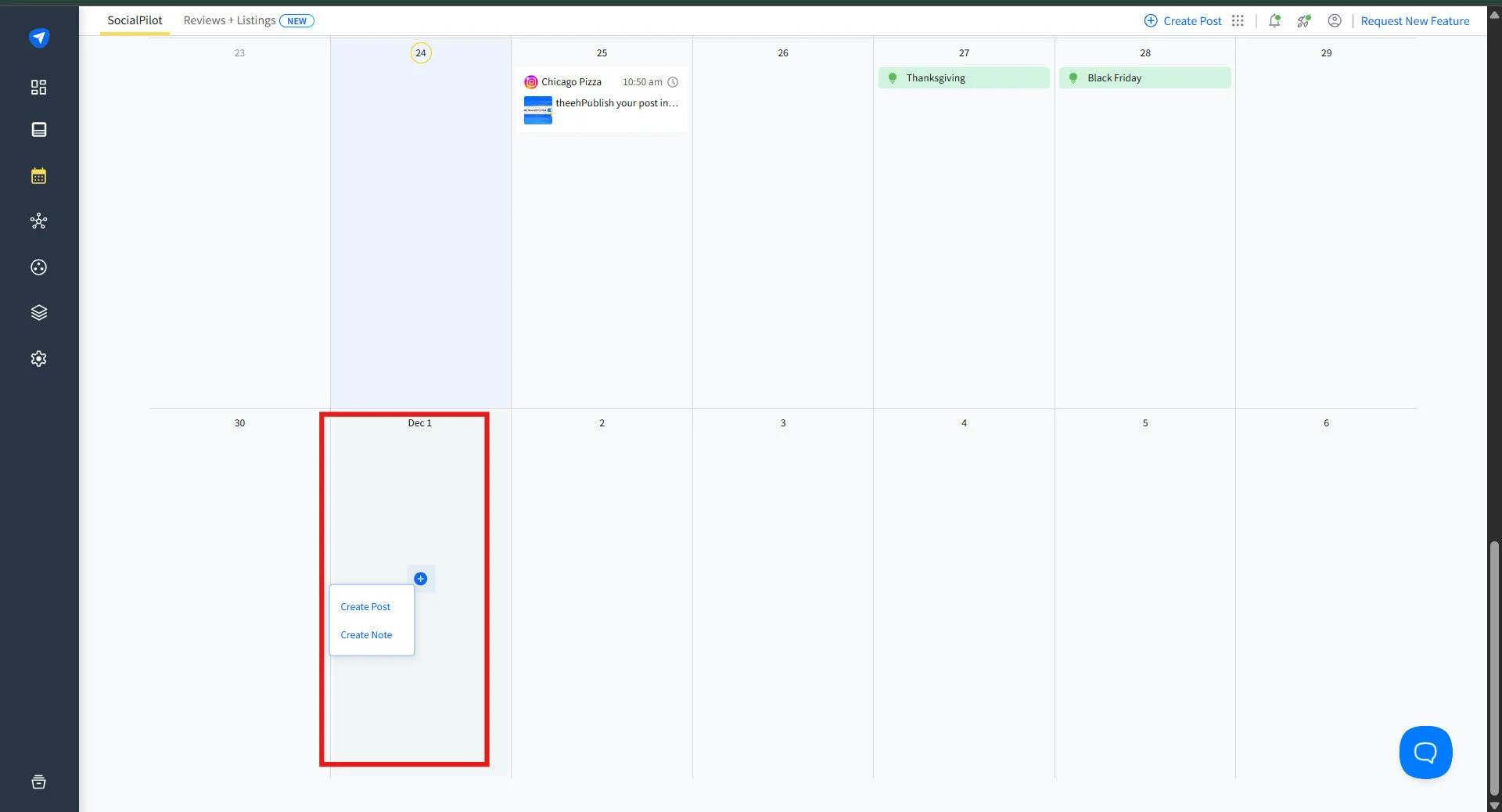
3. Click on a Selected Date on the Calendar
On the content calendar, to schedule content, hover over any future date and click on it to create a post. This will open your post-creation window with all the scheduling options.
4. Create a Post and Upload Media
Now, you can create your post and upload the media either with SocialPilot Canva Integration or a device. You can also use ‘Tags’ to find out the specific content you want to publish.

SocialPilot also has built-in AI assistants to help you generate content, copy, and relevant hashtags for your posts or develop content ideas.
Unlike many other social media scheduling tools, SocialPilot provides a post preview so you can visualize how your post will appear on your audience’s feed.
5. Select Account and Scheduling Options
Next, select the account for which you want to schedule the post and click on “Schedule Post.” Here, you will encounter several advanced scheduling options, such as Share Now, Share Next, Queue Post, Repeat Post, and Schedule Post.

6. Schedule the Post
When you click on Schedule Post, a pop-up will ask you to select a future date and time for scheduling. Once the date and time are set, click on “Schedule.”

Voila! You Are Done!
In a world where 92% of Fortune 500 companies are already leveraging OpenAI-powered tools like ChatGPT, the idea of scheduling posts directly through generative AI is no longer far-fetched. With SocialPilot’s AI Scheduler Custom GPT, it’s now a reality.
Here’s a quick and easy guide to help you get started with SocialPilot’s AI Scheduler and take the stress out of planning your social media content:
1. Access your SocialPilot Account
To get started, launch the SocialPilot AI Scheduler Custom GPT. You need to type a simple prompt such as “Log me into my SocialPilot account.” Enter your login details, and you’re ready to start.
2. Create Your Content
Need help writing a post? Just ask!
The AI can generate attention-grabbing captions, suggest images, or even come up with full post ideas. It’s a creative sidekick that helps you brainstorm quickly and effortlessly.
You can ask the AI to craft posts tailored to your platform, audience, and goals. Whether you’re after catchy one-liners, thought-provoking captions, or even image ideas, it’s all taken care of.
Here is a sample prompt for your reference. You can modify it to use it as per your need:
I’m a social media manager for EcoGlow, a sustainable skincare brand that focuses on clean beauty and eco-friendly packaging. We target Gen Z and millennial consumers who care about ethical products and minimalism. Our tone is warm, empowering, and nature-inspired.
We’re posting a carousel on Instagram to promote our “Spring Radiance Sale” offering 20% off sitewide, valid for the next 3 days only. The goal is to create urgency while reinforcing our eco-conscious values.
Please create one Instagram caption that feels inspiring, action-oriented, and visually descriptive. Include relevant emojis and a strong call-to-action to shop now. Use our hashtags #GlowNaturally #EcoGlowSkincare.
Emotion to evoke: Excitement and FOMO
Avoid sounding overly salesy—keep the message aligned with our values of simplicity and conscious self-care
As you can see in the image here, a detailed prompt can help you generate content that you can easily tailor to your audience’s needs, maintain consistency in tone, and reduce the time spent on revisions. Whether you’re creating images, infographics, social media captions, or ad copy, the more specific and structured your prompt is, the more accurate and useful the output will be.

3. Save as Drafts
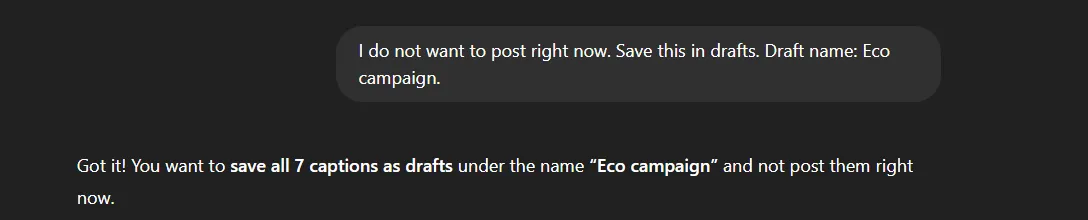
Not ready to schedule right away? No problem. Save your AI-generated content as drafts to build a library of ready-to-use ideas. This way, you’re never starting from scratch when it’s time to post.
Here is a sample prompt that you can use:
I do not wish to schedule the post right away. Save these content ideas for later. Name the draft: ABC Campaign.
As seen in the image here, a simple one-line prompt can help you save the content generated by the AI scheduler. You can access the prompt any time in the future to edit and schedule.
4. Schedule Your Posts
When you’re ready to go live, ask the AI Scheduler to show your drafts. At this step you have an opportunity to improve the language, tone and messaging of your post captions or descriptions.
Just give a simple prompt to edit, remove or add a caption to the draft.
Once you’re happy with your content, simply choose the posts you’d like to schedule and set the ideal time and date based on your strategy. Just prompt the AI Scheduler with the platform, post content, and your preferred date and time—and it’ll take care of the rest.
Here is a sample of a prompt that you can use to schedule the post:
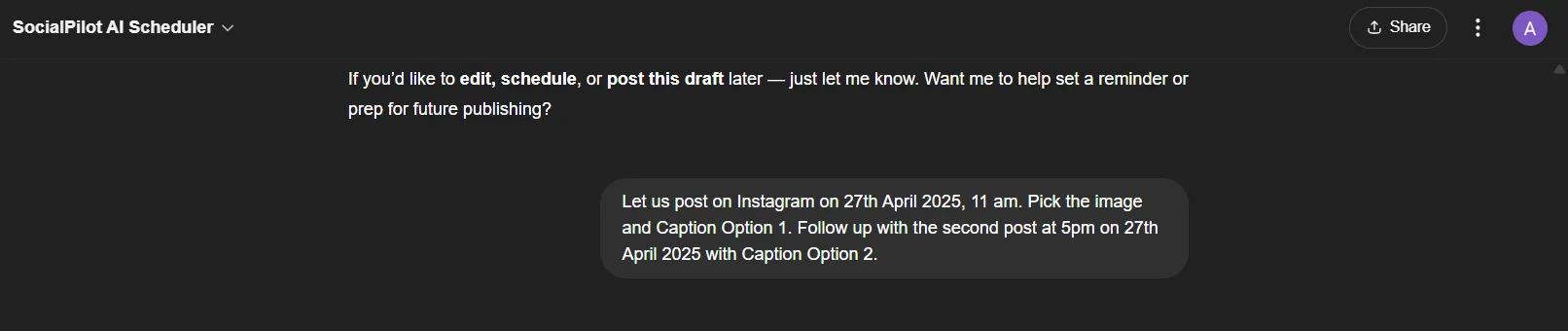
Let us post on Instagram on 27th April 2025, 11 am. Pick the image and Caption option 1. Follow up with the second post at 5 pm. On 27th April 2025 with caption Option 2.
In the image here, you can see how we scheduled the captions as perthe planned schedule. With a simple prompt, we described:
- When you want to post the content
- Where you want to post it (Instagram, Facebook, or any other platform)
5. Content Pipeline Monitoring
SocialPilot AI scheduler lets you effortlessly check what’s scheduled for the upcoming period across all your platforms with just one prompt. This feature provides real-time updates on your content pipeline, helping you stay organized and ahead of schedule.
While we’ve talked about how SocialPilot can streamline your social media efforts, it’s worth noting that there are many other alternatives for you to consider. For a comprehensive look at the options of social media management solutions, we recommend checking out a guide on the best social media posting tools for your business.
Scheduling social media posts is a powerful strategy for maintaining consistent posting, but it has its own pitfalls. Moving forward, we will explore the common mishaps that occur while scheduling and how using the right tool is essential to avoid these issues.
Let’s dive in and learn how SocialPilot provides effective solutions to the common challenges that arise when managing and scheduling posts across multiple platforms:
1. Account Disconnection
Often, the connection between your social media account and the scheduling tools is lost due to password changes or security issues, causing the scheduling and publishing failure.
Solution: With robust account management features, SocialPilot alerts you immediately when your account gets disconnected. This makes it easy to reconnect and avoid any possible interruption in scheduling.
2. Incorrect Asset Sizes and Dimensions
Every platform has specific size and dimension requirements for assets and limitations. Not adhering to these can lead to poorly featured posts and impact how your content is engaged.
Solution: SocialPilot provides guidelines pop-ups and tools to adjust your assets with platform-specific requirements and lets you tailor content for each platform so your content always looks the best.
3. Overlapping Content and Posting Errors
Planning and scheduling multiple posts for multiple platforms can lead to scheduling errors and content overlapping.
Solution: SocialPilot provides a calendar interface to help visualize your content for all the platforms in one place. This avoids content overlapping and ensures diversity while posting on different social channels.
4. Time Zone Confusion
When you bulk-schedule posts on various platforms, incorrect timing creates huge confusion due to time zone differences and thus reduces the effectiveness of your content.
Solution: With SocialPilot, you can easily visualize time zones for different posts and make sure that your content is published at the right time when your audience is most active, regardless of their geographic location.
This is how, by addressing common challenges, SocialPilot ensures time efficiency and maximizes your posts’ effectiveness. It protects you from minor issues that can cause big errors in your social media management.
Building a blueprint for social media success is as essential as scheduling posts for a better online presence. Creating a social media schedule sounds like a very overwhelming task, but with these tips, it can be done easily.
Don’t tell me it took you days to plan your social media schedule, and you are still unsatisfied! You need a feature-packed social media scheduling tool. A tool that can help you integrate all the elements and automate several portions of your work.
Tools like SocialPilot, Buffer, Hootsuite, SproutSocial, etc, are a few of the best social media scheduling tools you can choose from.
2. Leverage Scheduling Tools’ Advanced Features
You should leverage the advanced features of the scheduling tools for a seamless experience and saving time.
With features like bulk scheduling, you can upload an entire month’s content in one go, while AI suggestions analyze your audience to recommend optimal posting times and even generate captions and hashtags.
3. Know Your Audience and their Active Hours
Before you jot down content ideas and set up posting frequency, it’s essential to track down your audience. Who are they, what do they do, when are they most active, and where are they from? etc. You can gather these details with analytical insights and learn more about your audience. This data will make a path for your content calendar and a persona for your niche audience.
For this understanding, social media scheduling tools like SocialPilot offer social media analytics and the best time to post with the heat map based on their most active and engaging hours.
4. Choose Relevant Platform
Once you have established your audience persona and goals, you can select the most suitable platform for your activities and work on the type of content each platform will promote. If your brand is B2B or a marketing agency, your audience will likely be active on LinkedIn, Facebook, and Twitter. At the same time, if you are targeting B2C or young individuals, you will find suitable minds on Instagram and YouTube.
LinkedIn will be a more suitable channel if you want to promote professional content like articles and blogs. On the other hand, to share content like DIY or tutorials, Pinterest and YouTube will be right for you.
5. Maintain a Content Balance
You need a variety of content to be posted in different time slots to win more engagement from the audience. This means that you need to maintain a balance of content by mixing things up.
You need to blend different types of posts. For instance, for a beverage company targeting runners, this could mean blending educational tips on hydration with entertaining videos of athletes pushing their limits. This variety can help in keeping the feed dynamic, appealing to the target audience’s diverse interests, and solidifying your brand as a comprehensive resource, not just a product seller.
With the help of a social media scheduling tool, such a diverse content mix can be planned weeks ahead, ensuring consistent variety.
6. Set a Posting Frequency for Each Platform
After establishing all these factors about who, how, and where to engage with, you can move on to the technical part of setting a social media schedule. Start setting up and experimenting with the time zones to understand how your audience engages with your content.
Each platform has a different niche in terms of content and audience. So, having a tool like SocialPilot and its performance analytics can help you gain insights about where to post and how often to post. It can also let you create a customized time schedule for each platform and account.

7. Plan a Flexible and Relevant Content Calendar
The next step is to start brainstorming and find ideas to fill your months of content calendar. While preparing content for your social channels, make sure to include trends, holidays, important events, brand promotions, etc., to enhance the relevance for the audience.
When you plan your social media content calendar, ensure to identify the best time to post the content. Why?
To maximize visibility and engagement. Posting on the best time when your audience is most active ensures your content appears at the top of their feeds, boosting reach and increasing the chances of likes, shares, and comments.
Leave space for last-minute trends and algorithm changes if you don’t want to be the last one still trying the “ice bucket challenge” when any trend rolls in!
8. Monitor Performance and Adjust Scheduling Based on Analytics
Modern scheduling tools go beyond just posting content; they provide valuable metrics that offer deep insights into what’s working and what isn’t. By tracking important metrics like engagement, reach, and clicks, you can understand how your content resonates with your audience.
With this information, you can refine your content calendar, optimize your posting times, and create more of the content your followers love.
Summing Up
Social media schedulers are a must-have for any brand. They free up your time from the constant pressure of manual posting, allowing you to focus on creating quality content and engaging with your community.
By centralizing your content calendar, automating posts at optimal times, and providing valuable analytics, these tools ensure a consistent and highly effective social media presence.
For those looking for a robust solution, SocialPilot is a social media management tool that simplifies the scheduling process. With its intuitive calendar and features like bulk scheduling, it helps users efficiently plan and publish content across various channels. Take a 14-day free trial and start scheduling today!