In the U.S. alone, live commerce has already grown into a multi-billion-dollar market with over $17 billion in sales driven by livestream formats in recent years. But shopping is just one part of the bigger shift: live video itself has become a core way people consume content online.
On Instagram, Live streams power everything from product launches and creator collaborations to Q&A sessions, behind-the-scenes moments, coaching calls, and real-time events. Unlike polished Reels or edited posts, Live creates urgency. Followers get notified instantly. Comments happen in real time. Conversations feel direct and unfiltered.
As Instagram continues prioritizing real-time interaction and creator tools, Live has evolved from a simple broadcast feature into a serious growth channel for brands, businesses, and influencers alike.
If you’re not using Instagram Live strategically, you’re likely missing engagement, visibility, and revenue opportunities.
This guide walks you through everything you need to know, from requirements and setup to scheduling, guest invites, best practices, and saving your broadcasts so you can go live on Instagram with confidence and purpose in 2026.
Key Takeaways
- You must have a public account with at least 1,000 followers and the latest version of the app to go live on Instagram.
- To start a Live, open Instagram, swipe right (or tap + Create), choose Live, add a title, and tap Go Live.
- You can schedule a Live session up to 90 days in advance to remind followers and increase turnout.
- You can invite up to three guests and use tools like Q&A, pinned comments, and filters to keep viewers engaged.
- After the broadcast ends, you can save it to your Archive and turn highlights into Reels or clips.
- Going live regularly helps you connect in real time, build trust, and increase visibility.
What Do You Need to Go Live on Instagram?
Before starting an Instagram live, it’s important to understand the basic requirements and features available based on your account type. While the live streaming experience is similar across accounts, access depends on eligibility criteria set by Instagram.
General Requirements for Instagram Live in 2026:
To go live on Instagram, you must meet the following conditions as per Instagram’s August 2025 updates:
- A public account
- At least 1,000 followers
- An updated version of the Instagram app
- A stable internet connection
Ig live stream is available for both creator and business accounts that meet these criteria.
For Personal Accounts:
Personal accounts can go live as long as they are public and have 1,000 or more followers. live streams on Instagram are primarily joined through the mobile app and support core features like interacting with viewers, inviting guests, and saving the broadcast to the “Live Archive.”
For Creator Accounts:
Instagram creator accounts have access to advanced engagement tools, including scheduling live sessions, inviting guests, and using interactive features like stickers and Q&A. Creators live broadcasts can run for up to 4 hours. These accounts are ideal for influencers and creators who host live sessions regularly.
For Business Accounts:
Business accounts offer the most flexibility for Ig live. In addition to mobile streaming, businesses can use Instagram live Producer to stream from a desktop using third-party software like OBS or StreamYard. This enables higher production quality and more control.
- Maximum live duration: 1 hour
- Features: Add guests, use interactive tools, schedule live sessions, and save replays to the Live Archive (up to 30 days)
How to Go Live on Instagram (Step-by-Step)
Instagram live lets you broadcast in real time and connect with your audience instantly. You can go live using the mobile app or a computer, depending on your setup.
How to Go Live on Instagram Using Your Phone
Step 1: Open the Instagram app
Launch Instagram on your mobile device and make sure you’re logged into the account you want to go live from.
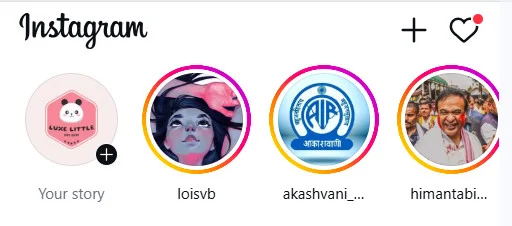
Step 2: Access the camera
Tap the Create (+) icon in the top-right corner or swipe right from your Feed to open the camera.
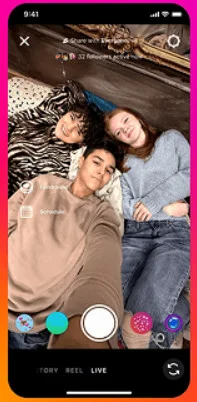
Step 3: Select the live option
Scroll through the options at the bottom and choose Live.
Step 4: Add a title (optional but recommended)
Enter a title to tell viewers what your live stream is about. This helps attract the right audience. And choose your audience like public, close friends or just a practice session.

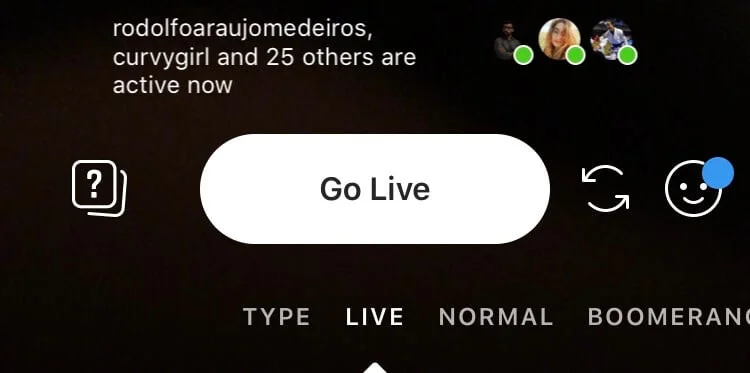
Step 5: Start your Ig live
Next, tap “Go Live” at the bottom of the screen. Once you go live, the number of viewers appears at the top, and comments appear at the bottom.
Step 6: Engage with your audience
While streaming, you can:
- Reply to comments.
- Add your own comment by tapping Comment.
- Pin a comment by tapping it and selecting Pin Comment (useful for CTAs or instructions).
- Invite guests to join your Live.
- Turn off comments or Live requests via Options.
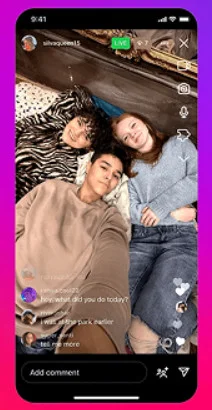
On iOS devices, you can also add photos or videos from your camera roll during the Live.
Step 7: End and save your Live
When you’re done, tap Close in the top-right corner and then click End Now to confirm.
After ending, you can:
- Tap Share to post the replay to your profile.
- Access or download the video from your Live Archive.
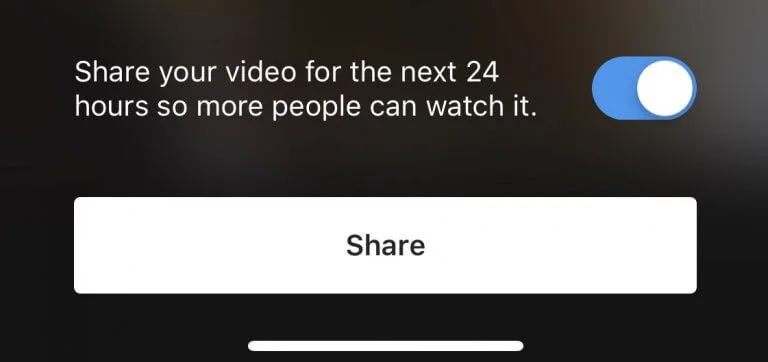
When saved, only the video is stored but comments, likes, and viewers are not included.
How to Go Live on Instagram Using a PC or Desktop
Instagram allows creators and businesses to go live from a desktop using Live Producer and third-party streaming software. This method is ideal for webinars, interviews, presentations, and professional broadcasts.
Step 1: Use a Creator or Business Account
Instagram Live from desktop is available only for Creator or Business accounts. Switch your account type in settings if needed.
Step 2: Choose Your Streaming Software
Select the streaming software you’ll use for your event. Here’re some common options available in the market: OBS, Streamlabs, StreamYard, and Restream.
Now, open the streaming software you have and locate the section where you can enter a Custom RTMP URL and stream key.
Step 3: Open Instagram Live Producer
- Go to instagram.com and log into your account.
- Click the “Add Post” (+ icon inside a square) button.
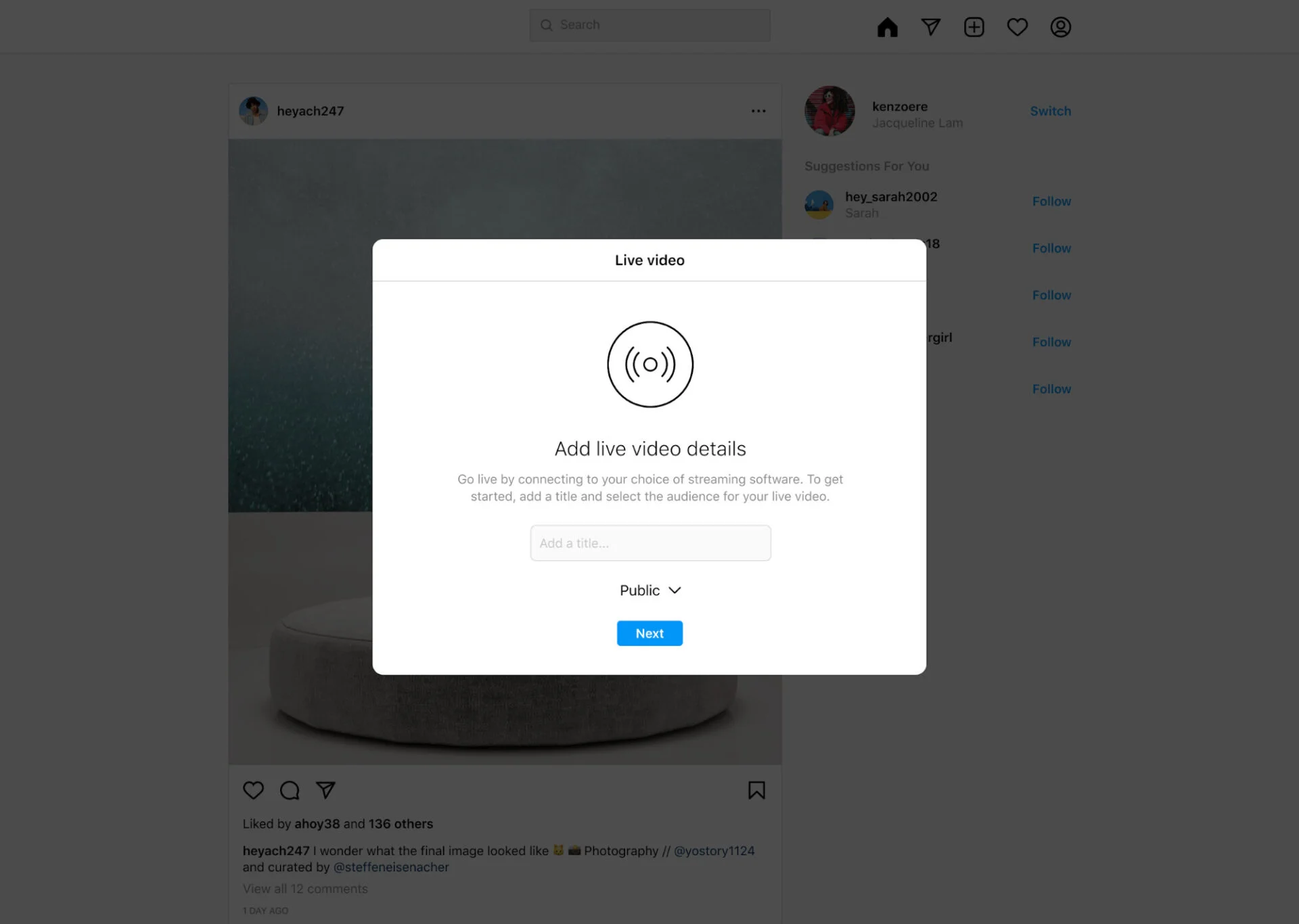
- Select “Live” from the dropdown menu.
On the “Go Live” screen:
- Enter the title of your live video.
- Choose your audience: Practice (not visible to anyone) or Public (visible to followers like a normal live).
Step 4: Copy Your Stream URL and Key
After setting up the title and audience, Instagram will generate: a Stream URL or Stream Key, then you should copy both.
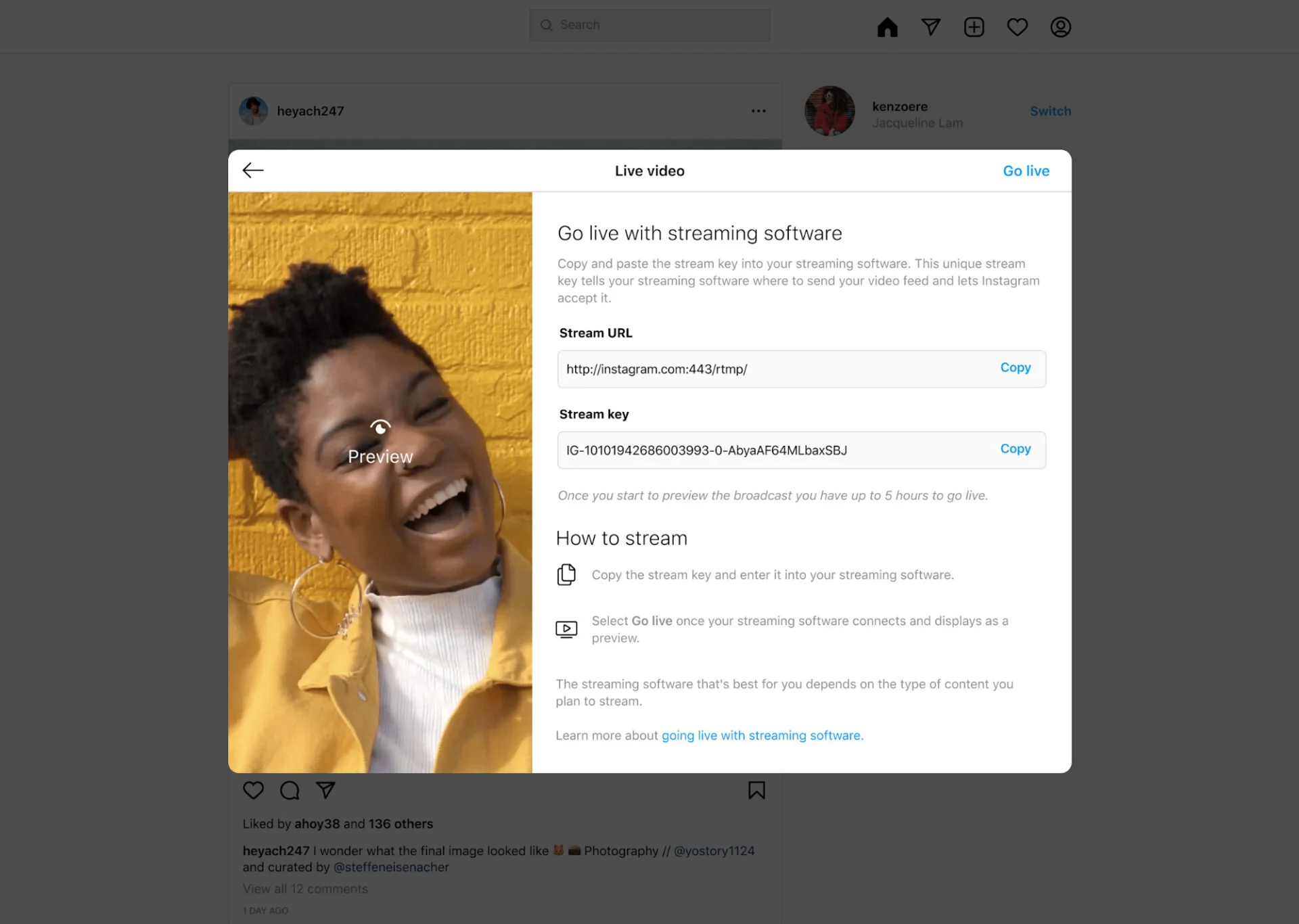
The stream key is not permanent. It refreshes each time you start a new Live session. You can also reset it manually if needed.
Step 5: Add Instagram as a Custom RTMP in Your Software
Inside your streaming software:
- Select Custom RTMP as your streaming destination.
- Paste the Stream URL.
- Paste the Stream Key.
The location for Custom RTMP settings varies by software, but it is usually found under Stream Settings.
Step 6: Set Up Your Video and Audio
Configure your:
- Camera or webcam
- Microphone
- Screen share or presentation
- Layout and overlays
Make sure everything looks correct before going live.
Step 7: Start Streaming in Your Software
Click Start Streaming inside your streaming software.
Return to Instagram Live Producer, you will see a preview of your broadcast. The preview should match what you set up in your streaming software. It may take a few seconds to appear.
Step 8: Click “Go Live” on Instagram
Once you confirm the preview looks correct, click “Go Live” in Live Producer. You can monitor and respond to audience comments through the Comments tab.
Step 9: End the Live Properly
When you’re ready to finish:
- Click “End Live Video” in Live Producer first.
- Then stop the stream in your streaming software.
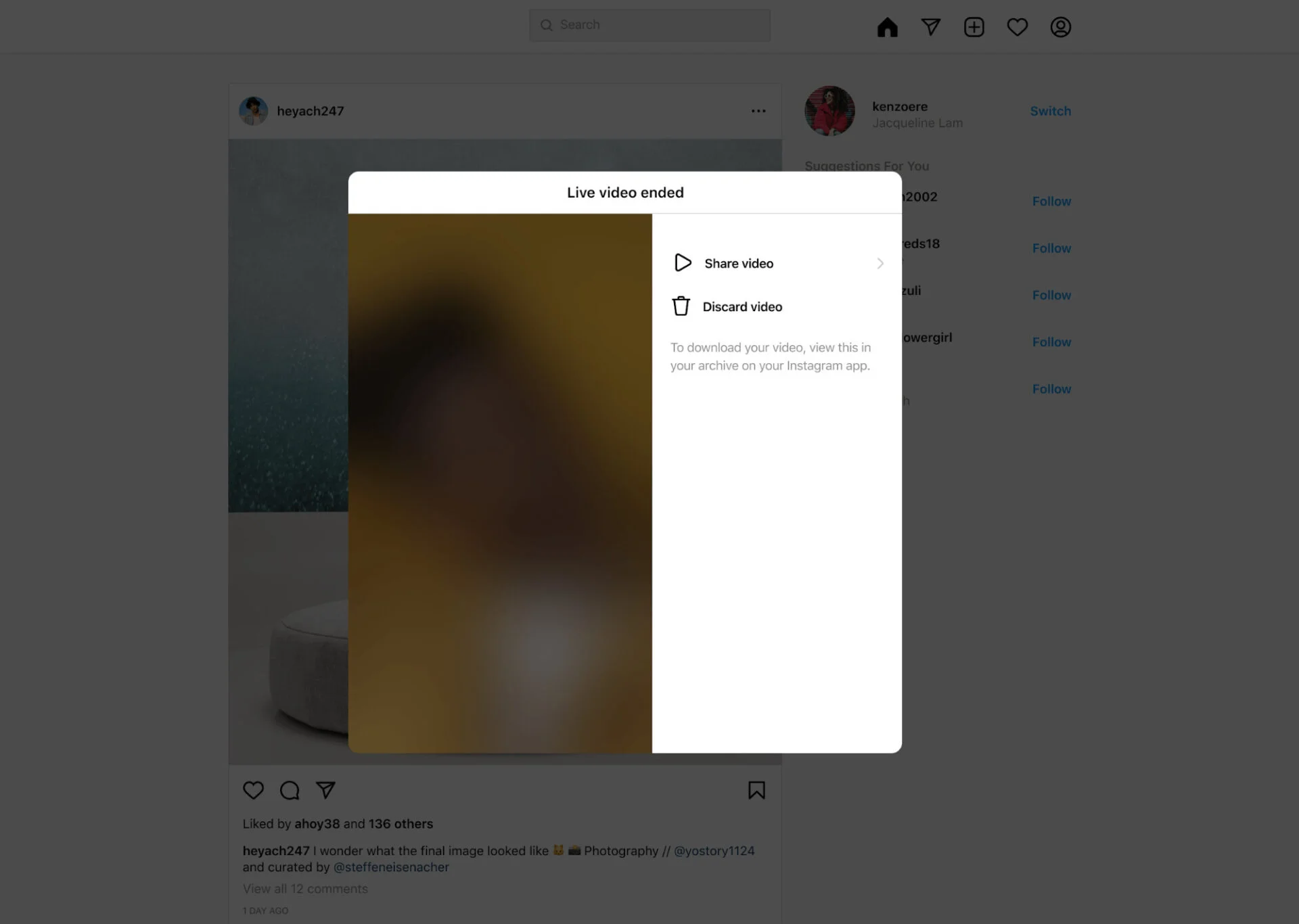
If you stop the streaming software first, Instagram will continue showing the last frame received. Always end the Live inside Live Producer first for a smooth ending.
How to Schedule an Instagram Live Broadcast in Advance
Instagram lets you schedule a live broadcast in advance, so your followers know when to join. This feature is available only in the mobile app and allows you to schedule a live anywhere from 1 hour to 90 days in advance.
Steps to schedule an Instagram Live:
- Tap Create in the top-right corner or swipe right from your Feed.
- Select Live at the bottom.
- Tap Schedule on the left side.
- Enter a title and choose a start date and time.
- Tap Done, then tap Schedule live video.
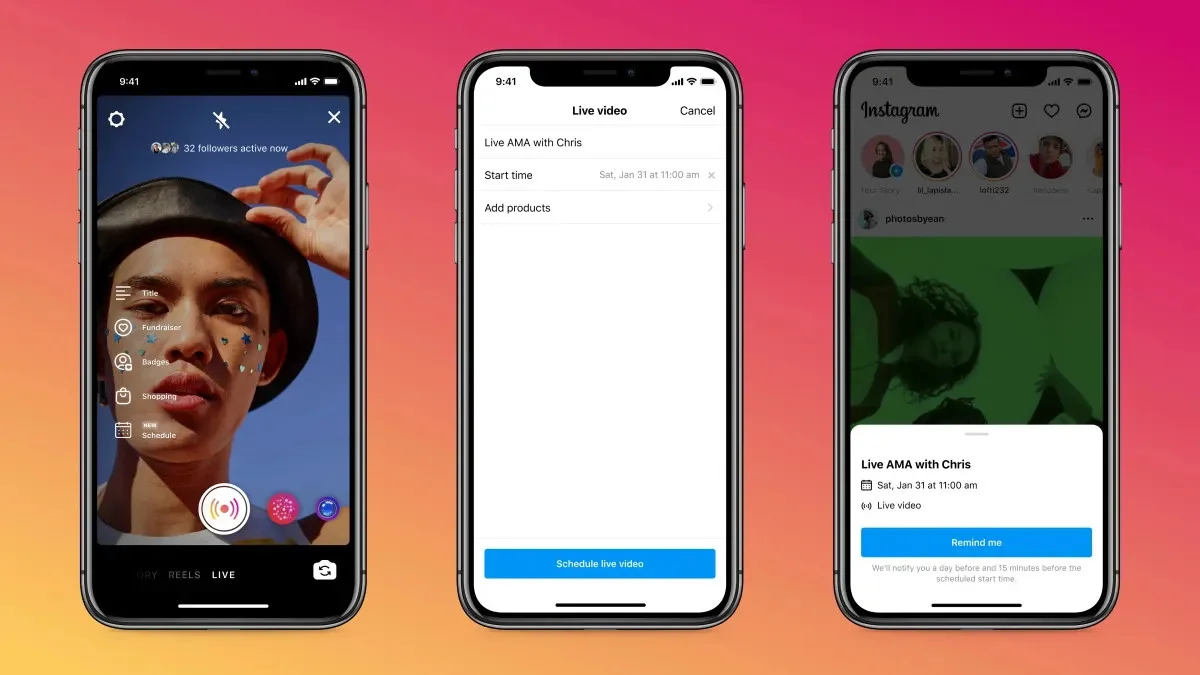
Once scheduled, you can share your live to your feed or Stories so followers can set reminders. Your upcoming live will appear below your profile picture, and Instagram will notify you 24 hours and 15 minutes before your broadcast starts.
How to Invite Guests to Join Your Instagram Live Stream
Instagram allows you to invite up to three guests to join your live using live Rooms. You can also request to join someone else’s live streaming. Inviting guests is a great way to host interviews, collaborations, or group discussions. To be invited, a guest must follow your Instagram account.
Steps to invite guests to your Instagram Live:
- Tap the guest icon during the live.
- You’ll see join requests or can invite followers to join.
- Tap Invite next to the person you want to add.
- Once they accept, they’ll appear in your Live Room.
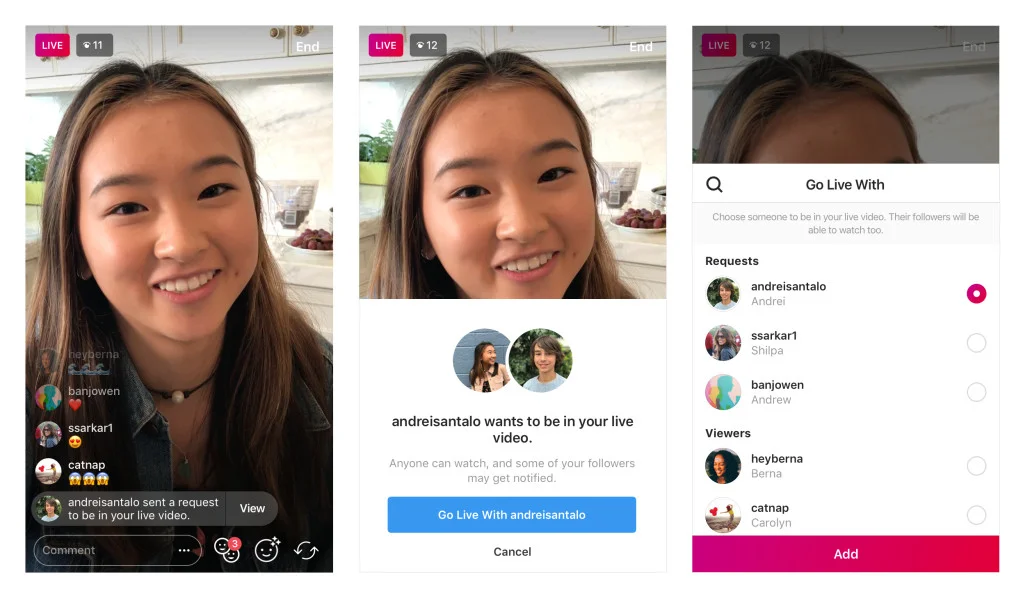
If you need to remove a guest, simply tap the X in the top-right corner of their video frame.
How to Manage Settings and Controls During an Instagram Live Broadcast
Instagram gives you several built-in controls to manage interactions and content while you’re live, helping you stay focused and maintain a positive experience for viewers.
Manage comments during Live:
You can turn off comments at any time by tapping Options at the bottom of the screen and selecting Turn off commenting. Any keyword filters you’ve enabled in your account settings will still apply to live comments, helping you automatically block unwanted or offensive messages.
Control requests to join your Live:
If you don’t want viewers to request joining your broadcast, open Options and tap Turn off requests to go live. This is useful when you want to keep the session focused or avoid interruptions.
Share photos and videos from your camera roll (iOS only):
On iOS devices, you can add photos or videos from your camera roll by tapping Add from camera roll during the broadcast. To remove the shared media, swipe right on the camera roll preview and tap Stop. Only you can see your camera roll content while selecting media. Note that this feature isn’t available in Live Rooms with guests.
Why Go Live on Instagram?
Going live on Instagram allows you to connect with your audience in real time and build deeper relationships through unfiltered, authentic content. It’s one of the most effective ways to engage followers beyond static posts or Stories.
- Real-time interaction and engagement: Instagram live lets you see comments, questions, and reactions as they happen, creating a two-way conversation that feels more interactive and personal.
- Build authentic connections: Live videos help humanize your brand or profile. You can show your personality, share behind-the-scenes moments, and communicate in a more natural, unscripted way.
- Increase visibility and reach: Instagram often prioritizes live content by notifying followers and highlighting lives at the top of the app, helping you reach more people organically.
- Share content that feels exclusive: Live streams create a sense of urgency and exclusivity, encouraging followers to tune in so they don’t miss out.
- Save and repurpose your live content: After the broadcast ends, you can save the replay to your profile, share it to your feed, or repurpose it into Reels and clips for extended reach.
- Build trust and community: Regular live sessions help establish credibility, answer questions directly, and foster a stronger sense of community with your audience.
Best Practices for More Effective Instagram Live Streams
To get the most out of Instagram live, it helps to balance spontaneity with a bit of planning. Whether you’re hosting a casual chat or a structured session, these best practices can help you create more engaging and successful live streams.
- Plan with a clear purpose: Before going live, decide what you want to achieve—entertain your audience, answer questions, share updates, or teach something new. A simple outline or talking points can help you stay focused without sounding scripted.
- Promote your live in advance: Let your followers know ahead of time by posting Stories, feed posts, or countdown stickers. Promotion increases attendance and gives viewers time to plan to join.
- Start strong and set expectations: Begin your live by introducing yourself, explaining what the session is about, and letting viewers know what they’ll gain by staying. This helps retain viewers who join late.
- Engage consistently with your audience: Respond to comments, answer questions, and acknowledge viewers by name when possible. Real-time interaction makes people feel valued and encourages them to stay longer.
- Be authentic and relatable: Live video works best when it feels real. Don’t worry about being perfect; show your personality, share honest moments, and speak naturally to build trust.
- Choose the right environment: Make sure you have good lighting, clear audio, and a stable internet connection to avoid distractions that can break viewer engagement.
- Save and repurpose your Live content: After your broadcast ends, save the replay to your profile or turn key moments into Reels or clips to extend the value of your live session.
Interactive Features to Make Your Instagram Live More Engaging
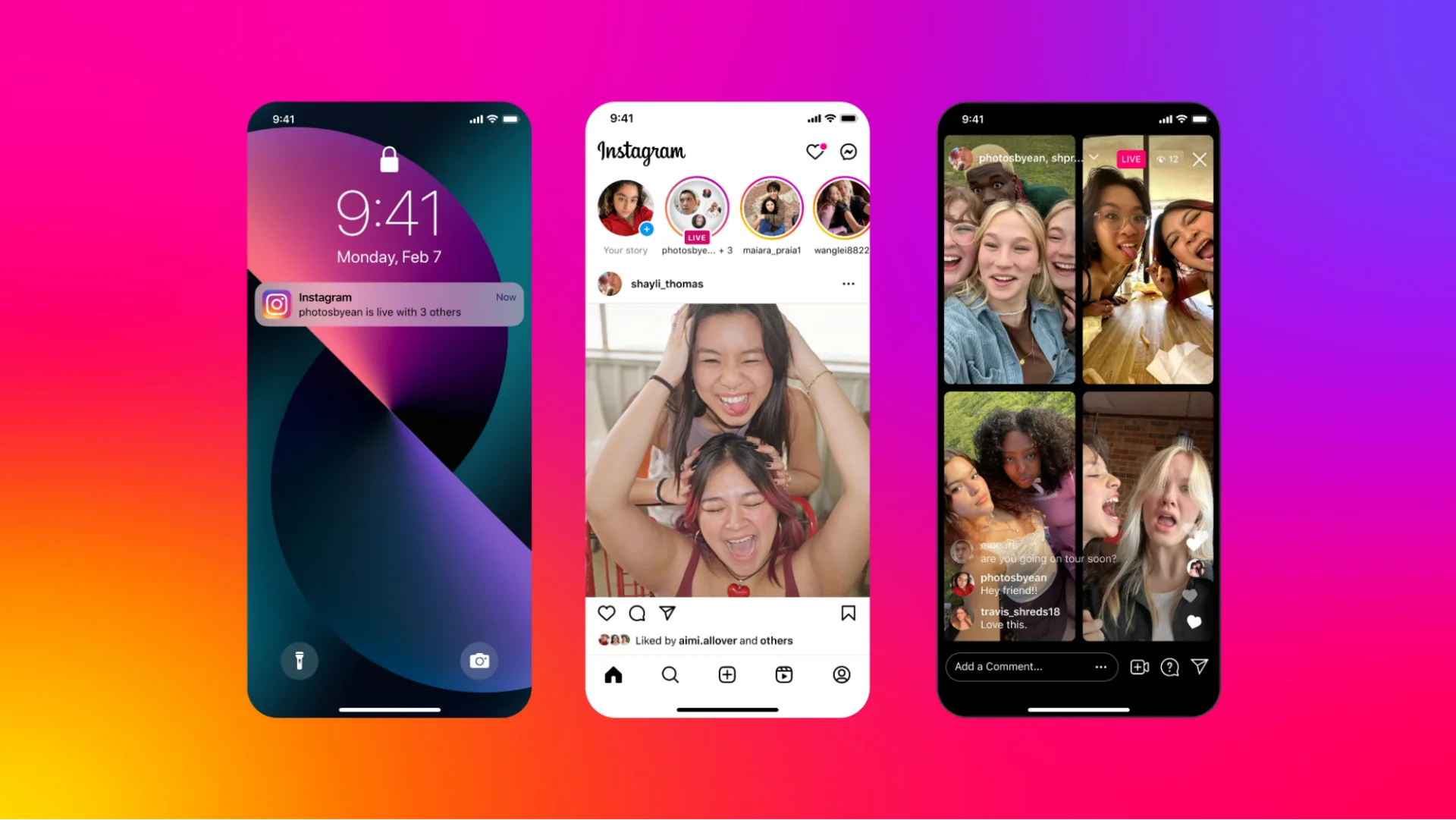
Instagram live includes a variety of interactive tools that help you keep viewers engaged, encourage participation, and make your broadcasts more memorable.
- Filters and effects: You can enhance your live stream visually more appealing with Instagram’s filters and effects. These can help match your brand style or simply add a fun, creative touch. Effects like Superzoom or subtle face filters can make your stream more dynamic without being distracting.
- Invite guests and co-hosts: You can invite up to three guests to join your live broadcast, turning it into a Live Room. This is ideal for interviews, panel discussions, collaborations, or hosting conversations with your community.
- Live Q&A and pinned questions: It’s important to interact with the audience during live, and the Q&A feature will help to collect and display viewer questions during the stream. Pinning questions on-screen keeps the conversation organized and helps new viewers quickly understand what’s being discussed.
- Fundraisers and donations: Recently, Instafram allow creator and businesses to add a fundraiser during live streams to raise money for causes you care about. So, viewers can donate in real time, making your broadcast more impactful and purpose-driven.
- Share images and videos during Live (iOS): On supported devices, you can add photos or videos from your camera roll to provide context, highlight products, or guide the conversation visually.
- Pin comments and moderate interactions: Pin important comments, announcements, or links so viewers don’t miss them. You can also remove or block users to keep the conversation respectful and focused.
- Save, share, and repurpose your live content: After your live ends, share it on your profile or repurpose highlights into Reels or clips to extend its life and reach.
How to Save a Live Stream on Instagram?
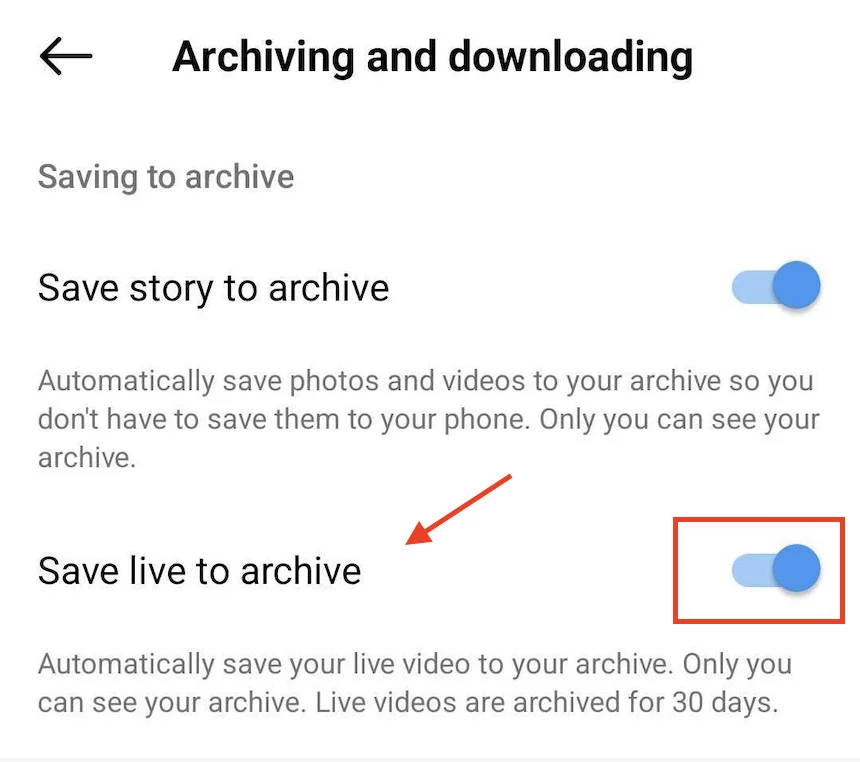
Once an Instagram live ends, it won’t automatically appear on your profile or feed. However, you can keep a copy of your live stream by saving it to your live Archive, as long as the setting is enabled before you go live.
To save your Instagram Live streams, you must turn on Save live to archive using the Instagram mobile app:
- Tap your profile picture in the bottom right to open your profile.
- Tap the ☰ Menu (three lines) in the top-right corner.
- Under Your app and media, tap Archiving and downloading.
- Toggle on Save live to archive.
Once enabled, your live videos will be automatically saved to your “Live Archive” after the broadcast ends.
Why Can’t You Go Live on Instagram?
You may be unable to go live on Instagram for several reasons. Instagram currently allows live broadcasting only for users who have a public account with at least 1,000 followers. If your account is private or has fewer followers, the live option may not be available.
Other common reasons include a poor internet connection, using an outdated version of the app, account restrictions, or violations of Instagram’s Community Guidelines.
Additionally, the ability to start a live broadcast is turned off by default for Teen Accounts. Teens under 16 need a parent’s or guardian’s permission to enable live broadcasting, while users aged 16–17 can turn it on without permission.
Before starting live, make sure your app is updated, and your account is in good standing to access Instagram Live.
Making the Most of Instagram Live
Instagram live gives creators and businesses a powerful way to connect with their audience through real-time, authentic interactions. When used strategically by planning your content, engaging viewers, and using interactive features, live can significantly improve reach, trust, and visibility. From casual updates to structured events, consistency and intent make all the difference.
To manage your Instagram content more efficiently before and after going live, using the right tools is key. Explore SocialPilot’s pricing plans to simplify content scheduling, performance tracking, and collaboration so you can focus more on creating meaningful connections and less on manual work.