Consistent posting on LinkedIn is a great way to build your brand authority. But the question is, can you schedule posts on LinkedIn to prevent last minute hassles?
The answer is yes, you can pre-plan and schedule your post, so that you stay effortlessly consistent even on the busy days.
So, how to schedule LinkedIn posts in a way that saves your time and keeps your content strategy running on track? Let’s find out.
How to Schedule Posts on LinkedIn?
There are three ways to schedule a post on LinkedIn:
- Scheduling LinkedIn Posts on desktop using the LinkedIn Native Scheduler
- Scheduling LinkedIn Posts with a Scheduling Tool like SocialPilot
- Scheduling LinkedIn Posts on Mobile
We’ll discuss the simple native LinkedIn scheduler first. This feature allows you to schedule one post at a time and is more suitable for personal use.
How to Schedule LinkedIn Posts on Desktop Using the Native Scheduler
If you are a beginner trying to schedule LinkedIn content, then using the native scheduling tool is the easiest way out. Just open your desktop and follow the steps below:
Step 1: Log in to Your LinkedIn & Create Post
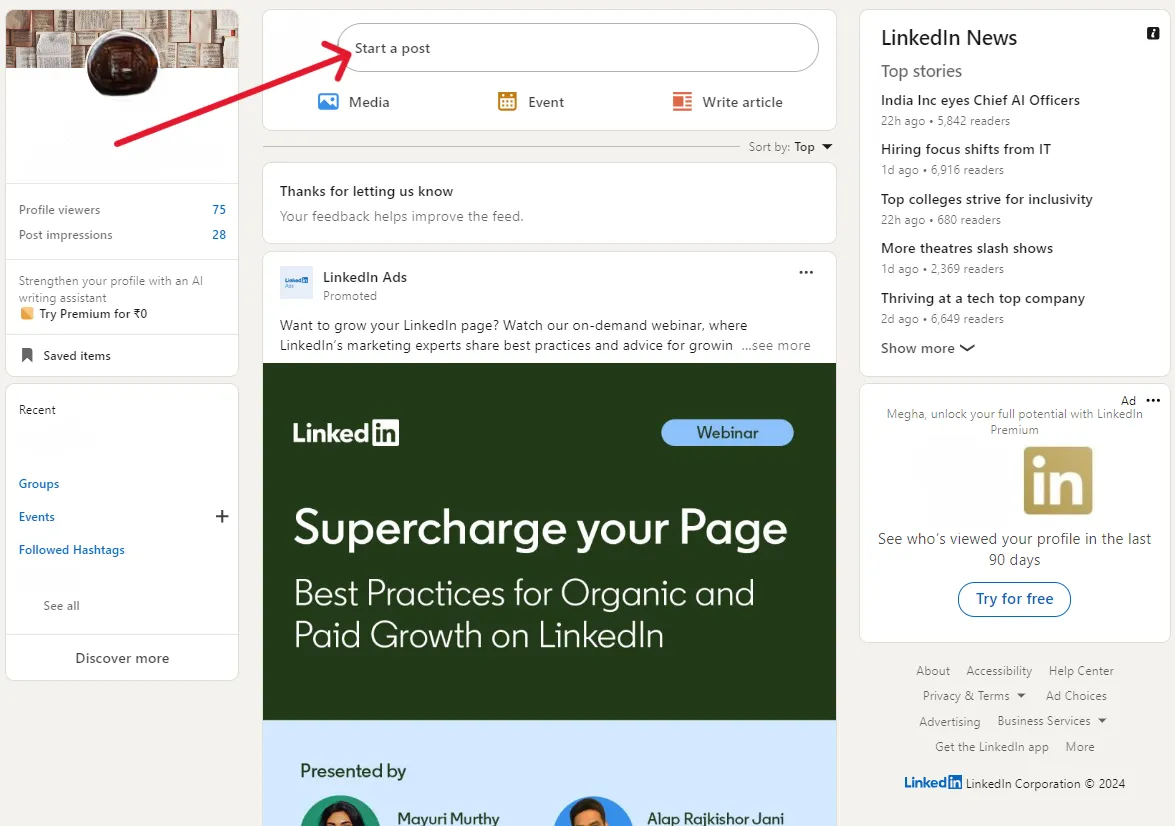
First, log in to your LinkedIn Account and go to the “Start a post” field at the top of your feed to begin creating your content.
Step 2: Start Scheduling
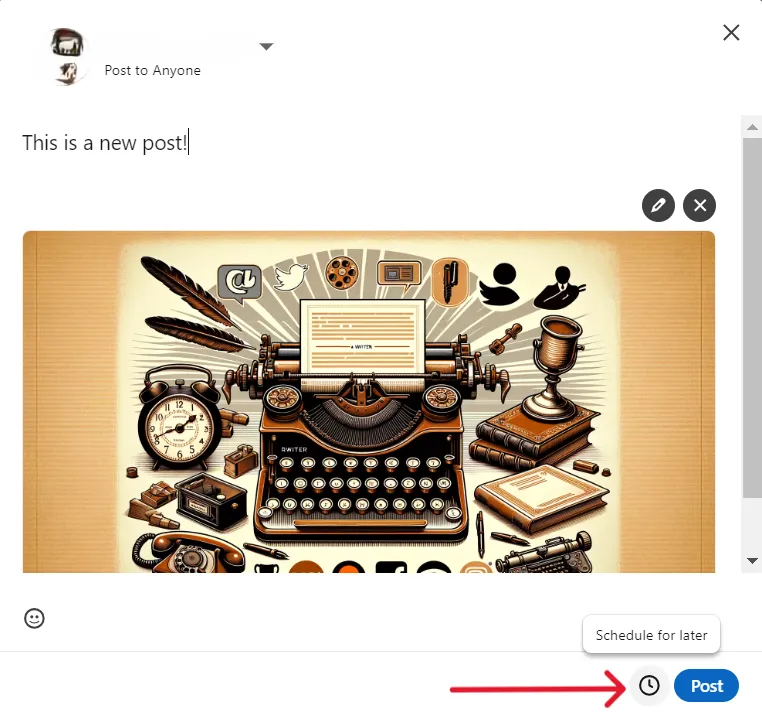
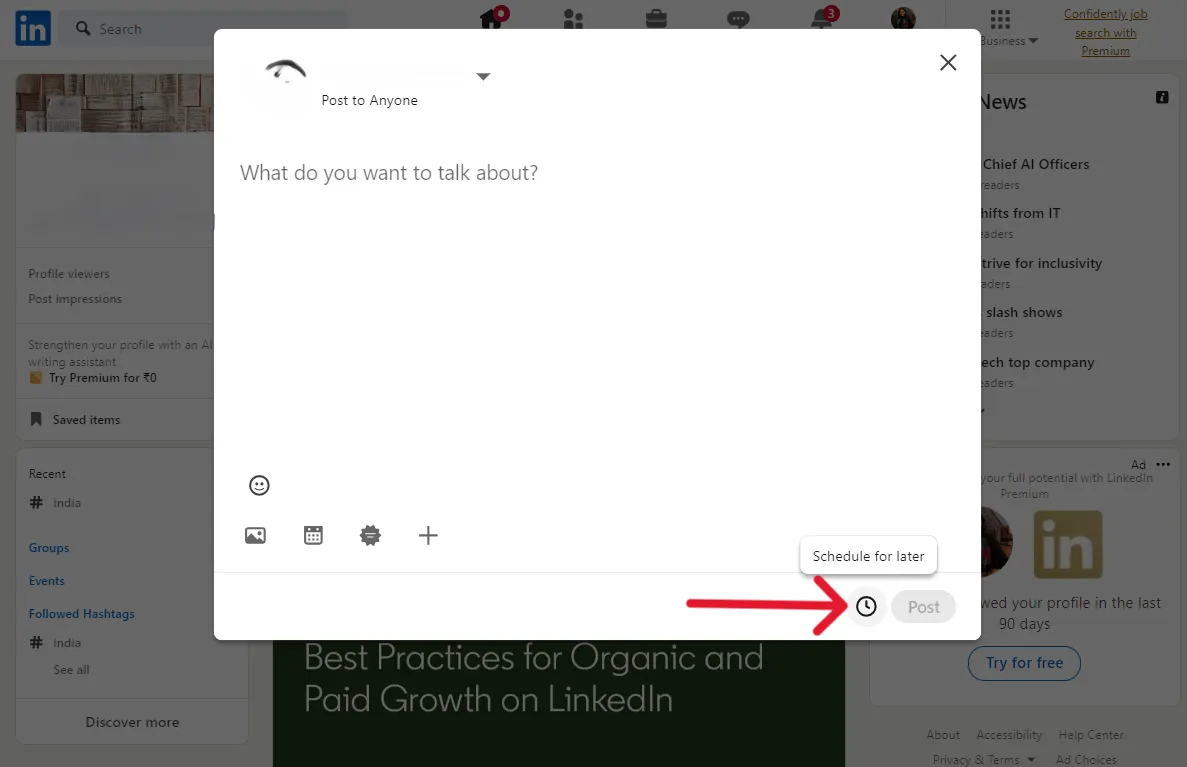
Once you have created your post, click on the clock icon to the left of the “Post” button. This is the “Schedule” button, click on it to start scheduling the post you just created.
Step 3: Set the Publishing Date and Time
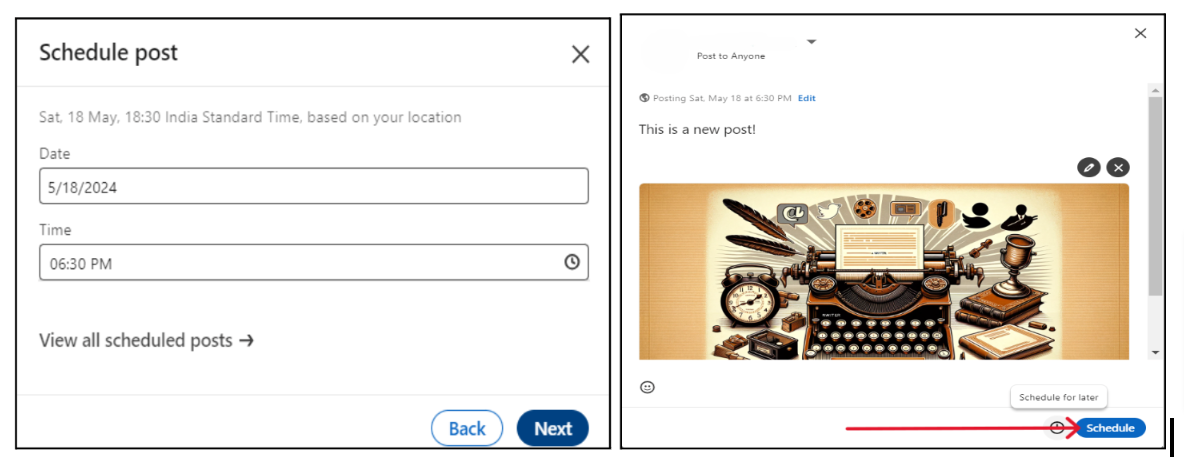
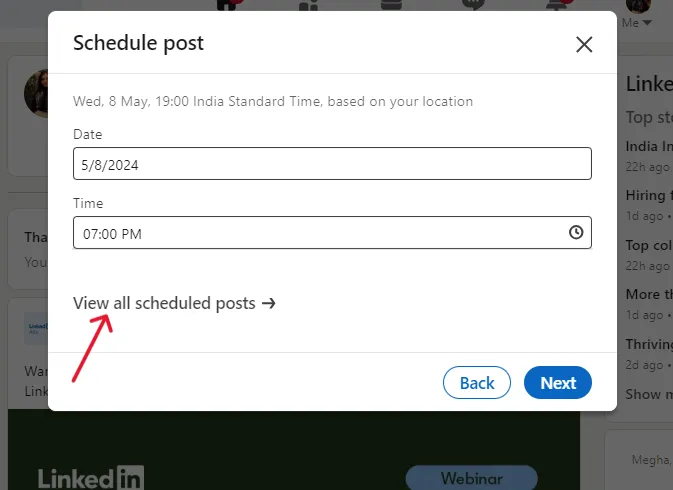
Once you click the Schedule button, a Schedule Post pop-up will appear. Here, you can set the date and time you want your post published automatically. Be mindful that you can’t set a time beyond three months in the future.
After setting the timeline, click on Next, an
d at last, click Schedule to complete the process.
Just like LinkedIn, if you need help scheduling posts on other social media platforms, then check out this extensive guide on how to schedule social media posts to schedule posts like a pro.
Limitations of LinkedIn Native Scheduler
While this tool is free and works well for beginners, there are some limitations that can slow you down as your content strategy grows.
- No bulk scheduling → You can only schedule one post at a time.
- No recurring/repeating posts → You cannot schedule repeating posts on the native scheduler
- Single-platform scheduler → This native feature works only on LinkedIn; you cannot cross-post your LinkedIn posts on any other social platform, nor will it offer you multi-network analytics.
- No team collaboration → Native scheduler has no multi-user or approval workflow features.
- No “best time to post” suggestions → It offers no insights or timing suggestions as to when you should post.
- No visual content calendar → There is no calendar view available for scheduled posts.
- Scheduling limit of 3 months → LinkedIn currently allows scheduling up to 90 days in advance.
- No custom reports or analytics dashboards → There is no reporting system built into the scheduler itself.
How to View Scheduled Posts on LinkedIn
Wondering how to see scheduled posts on LinkedIn? Well, it’s pretty simple.
Follow the steps below to see all your scheduled posts:
Step 1: Go to your LinkedIn profile and click on “Start a post.”
Step 2: The post composer window opens. In that window click on the clock icon in the bottom-left corner.
Step 3: Click on “View all scheduled posts” in the pop-up window and all your scheduled posts will appear
How to Edit LinkedIn Scheduled Posts
If you have scheduled your posts using the native scheduler, then follow these steps to view or edit scheduled posts on LinkedIn:
Step 1: Follow the same steps as above to first view the scheduled post. Go to your LinkedIn page > “Start a Post” > Click on the clock (Schedule) icon > View all scheduled posts.
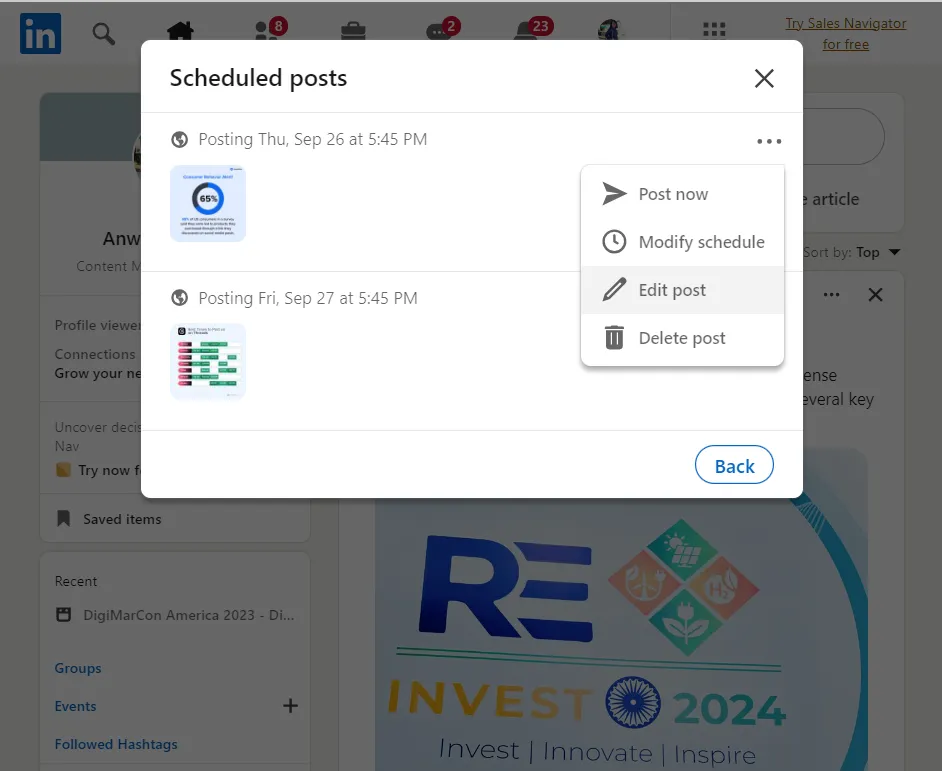
Step 2: Click on the three dots beside the post you want to edit. Among the options that appear, select Modify Schedule to change the scheduled time or date of the post. If you want to edit the actual content of the post, select Edit Post. Now make the necessary changes and click on “Schedule” again.
How to Delete Natively Scheduled Posts on LinkedIn
If, for any reason, you want to delete any of your scheduled LinkedIn posts, it’s entirely possible and quite easy.
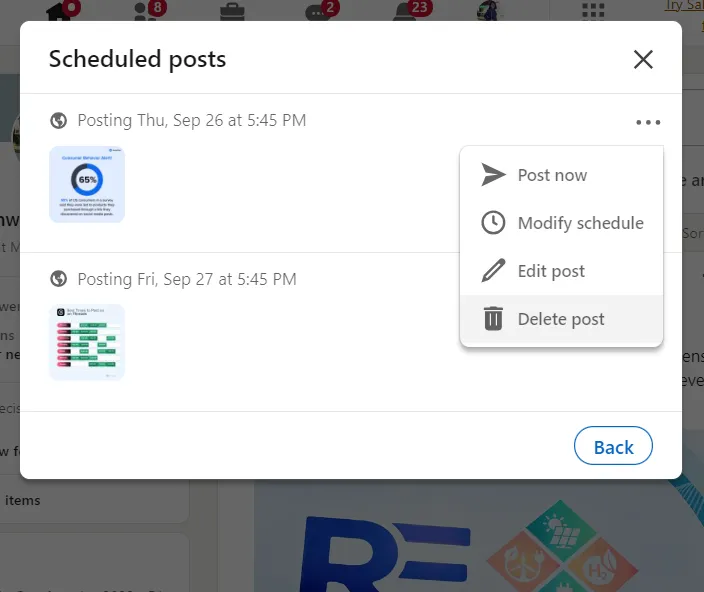
First, you access all your scheduled posts, following the same process as above. Go to “Start a Post” >> Click on the Schedule icon >> View all scheduled posts. Then click on the three dots beside the post >> Delete post.
SocialPilot is a social media management tool with advanced scheduling options that supports all major social channels, including page posts on LinkedIn. Its LinkedIn scheduler offers advanced capabilities that are lacking in LinkedIn’s native scheduler, such as cross-posting, best-posting time suggestions, and advanced analytics.
This makes SocialPilot a better choice for businesses and marketing agencies handling multiple LinkedIn accounts for their clients. Follow the steps below to schedule LinkedIn posts using SocialPilot:
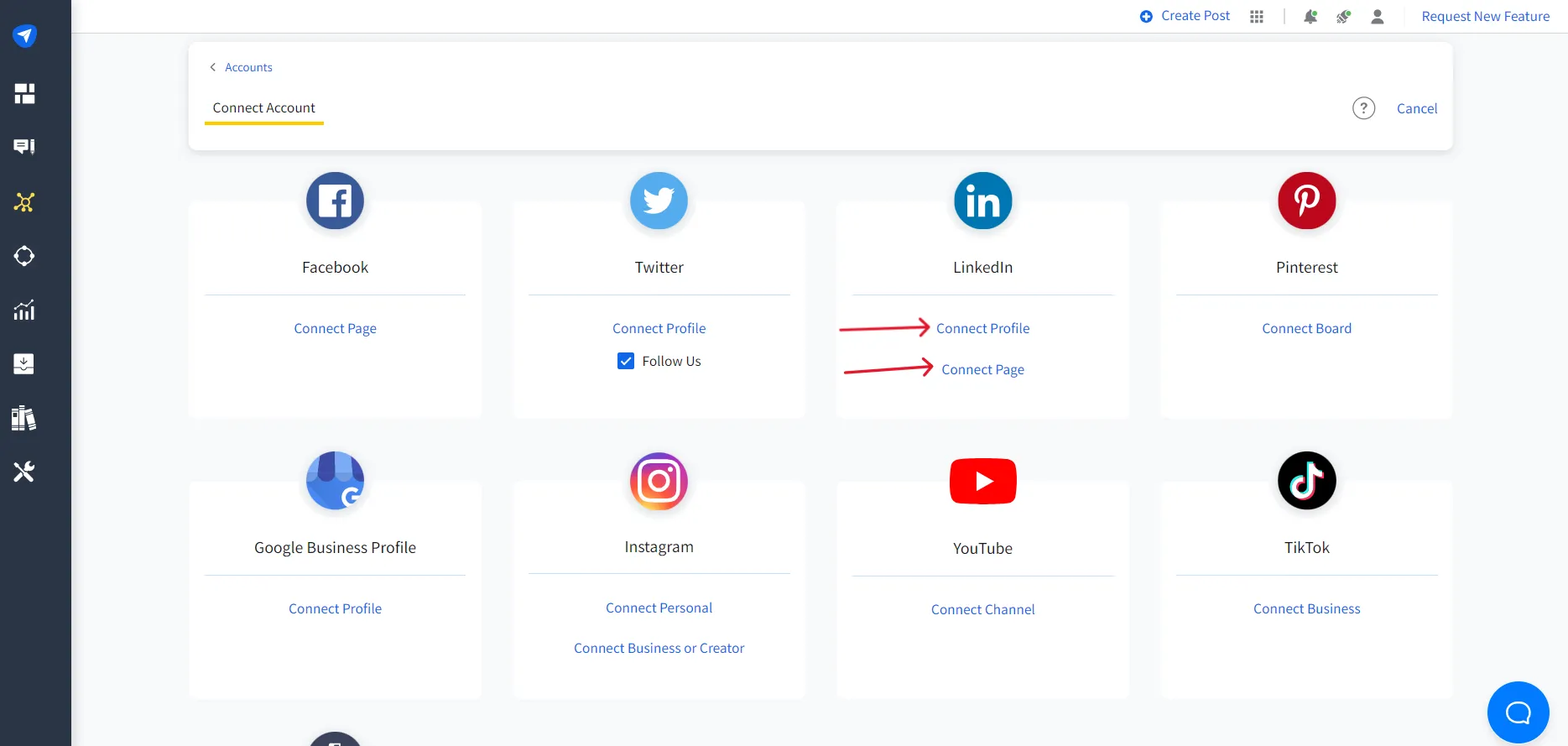
Before you start scheduling, connect your LinkedIn pages or profiles to your SocialPilot account and give the tool all necessary permissions.
If you are a social media manager, you can connect and schedule LinkedIn content for both your Profile and LinkedIn company Pages with SocialPilot.
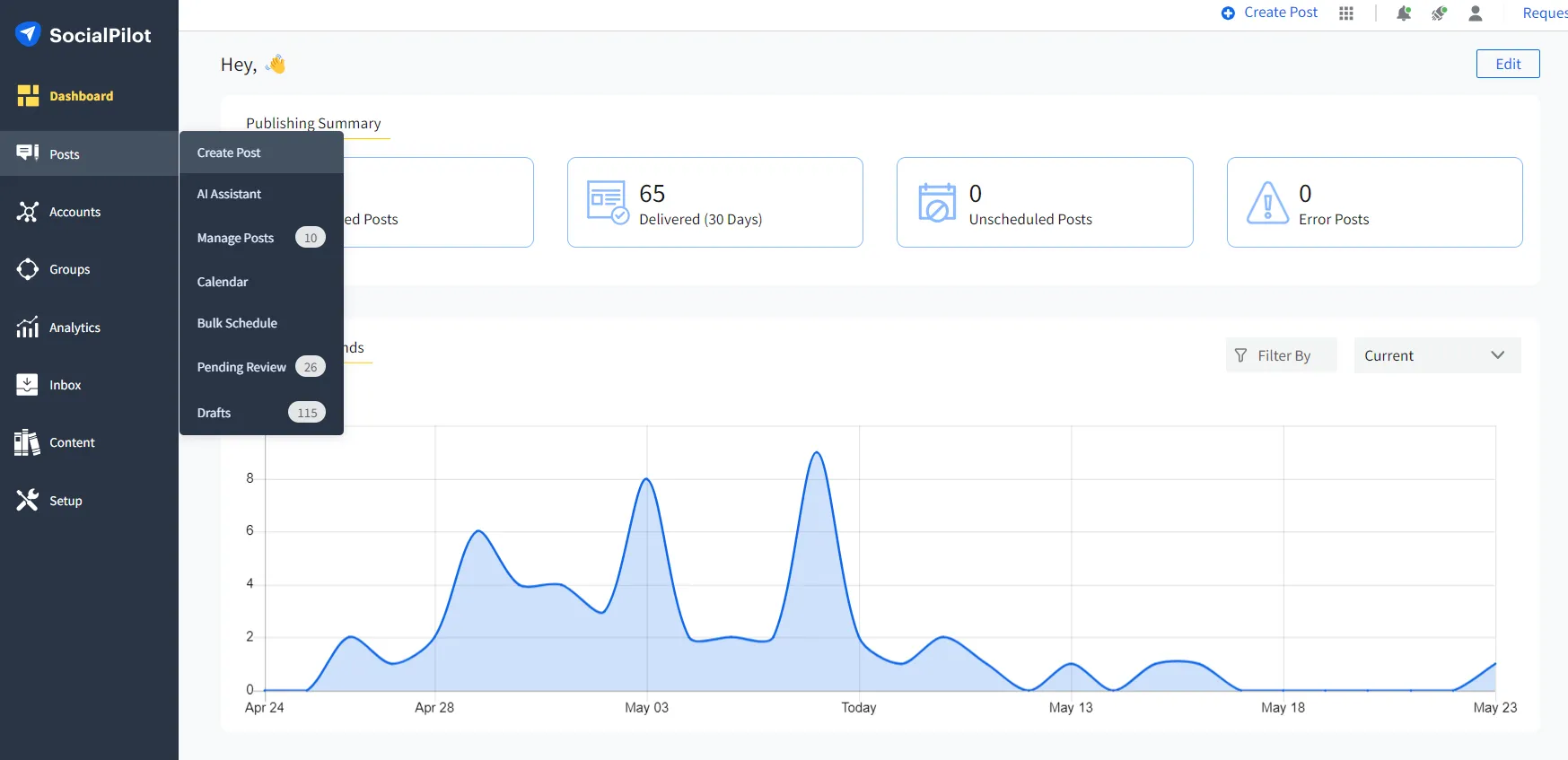
Once you are logged in, click on the posts > Create Post button on the dashboard. A window will open where you can compose your post.
Step 3: Select LinkedIn and Compose a Post
In the create post window, you must choose LinkedIn as the social channel and start composing your post with captions, media, hashtags, links, etc.
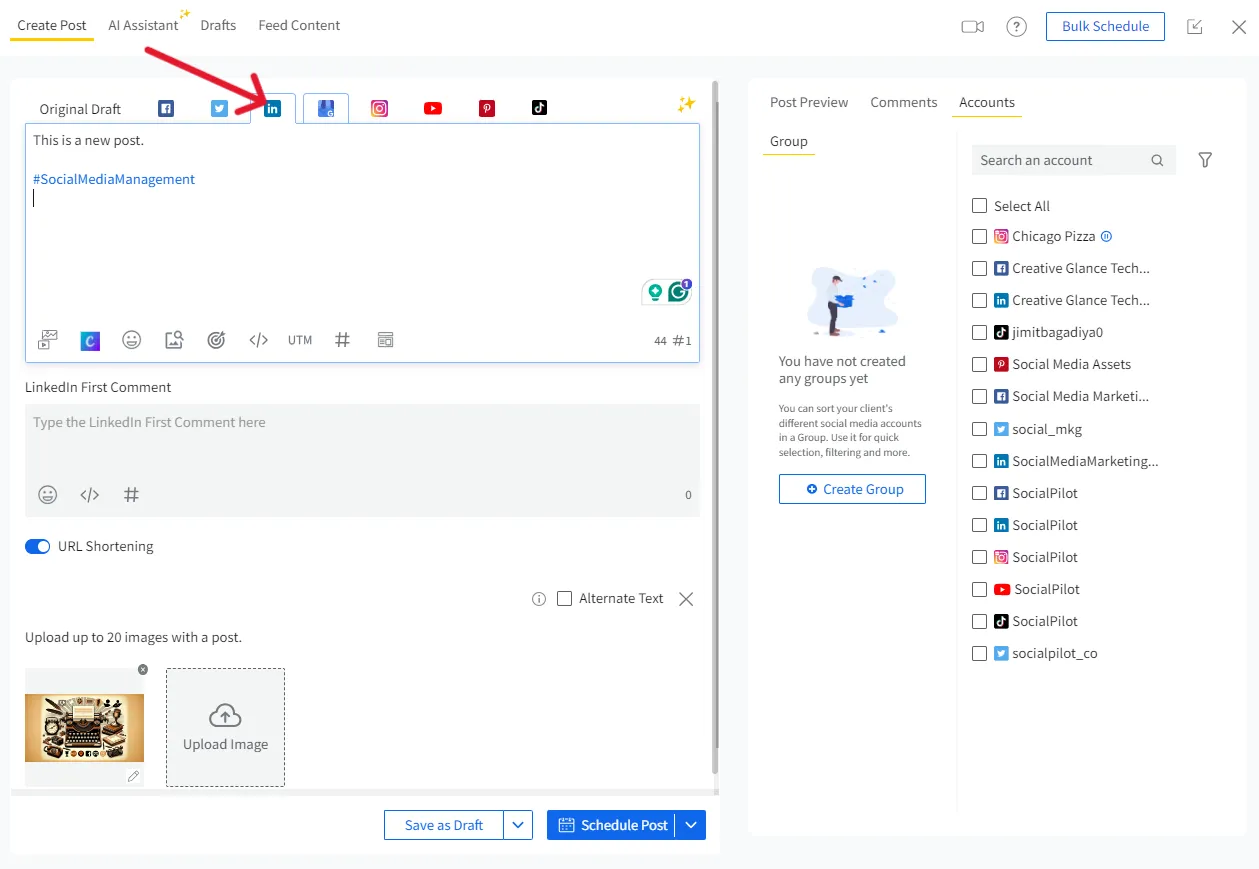
You can even add the first comment to your post, which will be scheduled and published right alongside your post.
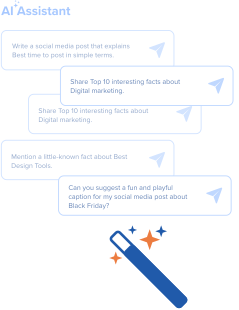
If you are struggling to create your posts from scratch, use SocialPilot’s Free AI LinkedIn Post Generator to create perfect LinkedIn posts along with hashtags.
Here’s a peek at all that this free AI tool can do for you.
LinkedIn Post Generator
Generate compelling, insightful LinkedIn posts effortlessly with our LinkedIn Post Generator.
Here is the Generated Result
Create More for Free!
Get 500 Credits to Generate AI Content!
Since you’re an AI fanatic, we are offering you 500 Free Credits to generate awesome content
on
the AI Assistant of SocialPilot.
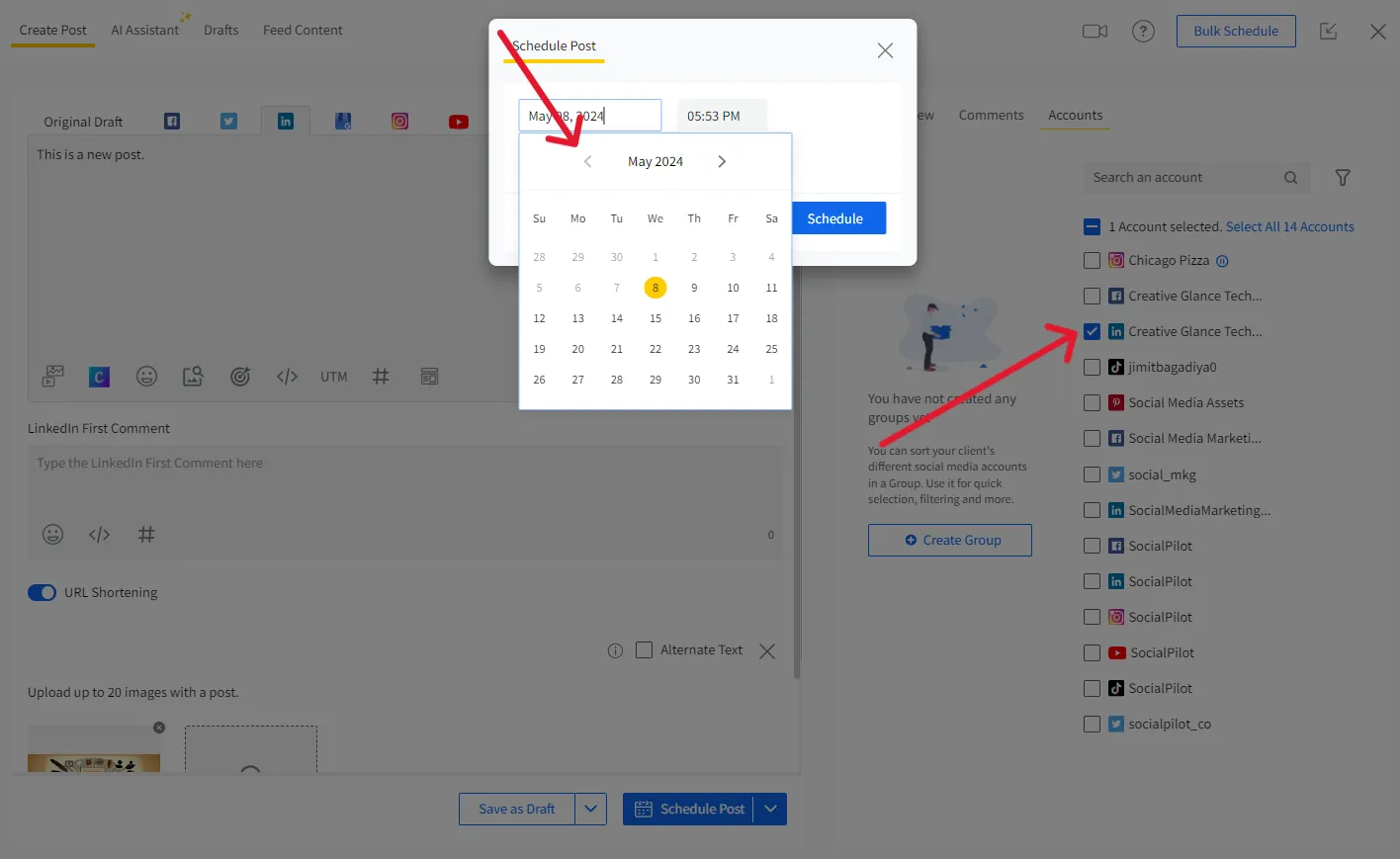
Step 4: Pick a LinkedIn Account and Date and Time
After you have composed your post, select the LinkedIn account or page you want to schedule it for and then choose from the advanced scheduling options available (schedule post, add to queue, repeat post, share now, etc).
To schedule LinkedIn posts in advance, you can now choose any suitable date and time in the future (no limitations).
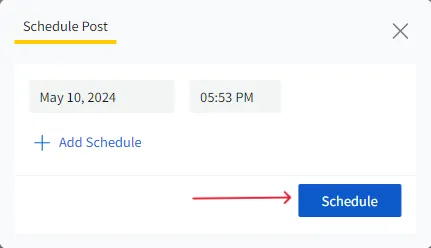
Step 5: Schedule Your Post
Finally, click schedule, and your post will be successfully scheduled and ready to be published at the given time.
SocialPilot even allows users to create and schedule document carousel posts which is not easily done from LinkedIn itself.
Lets see how.
When you have to share more than one image or document, you can schedule your post as a LinkedIn carousel post. SocialPilot lets you schedule carousel posts in both image and document carousel publishing (carousel PDF) formats to publish automatically.
To schedule a carousel post with SocialPilot, follow these steps:
Step 1: Start creating posts and select LinkedIn as a platform
Step 2: Upload more than one image or a single PDF document
Step 3: Compose the post and select your LinkedIn account
Step 4: Before scheduling, choose Carousel (PDF) as the post type. Your document/images will appear as a slidable carousel.
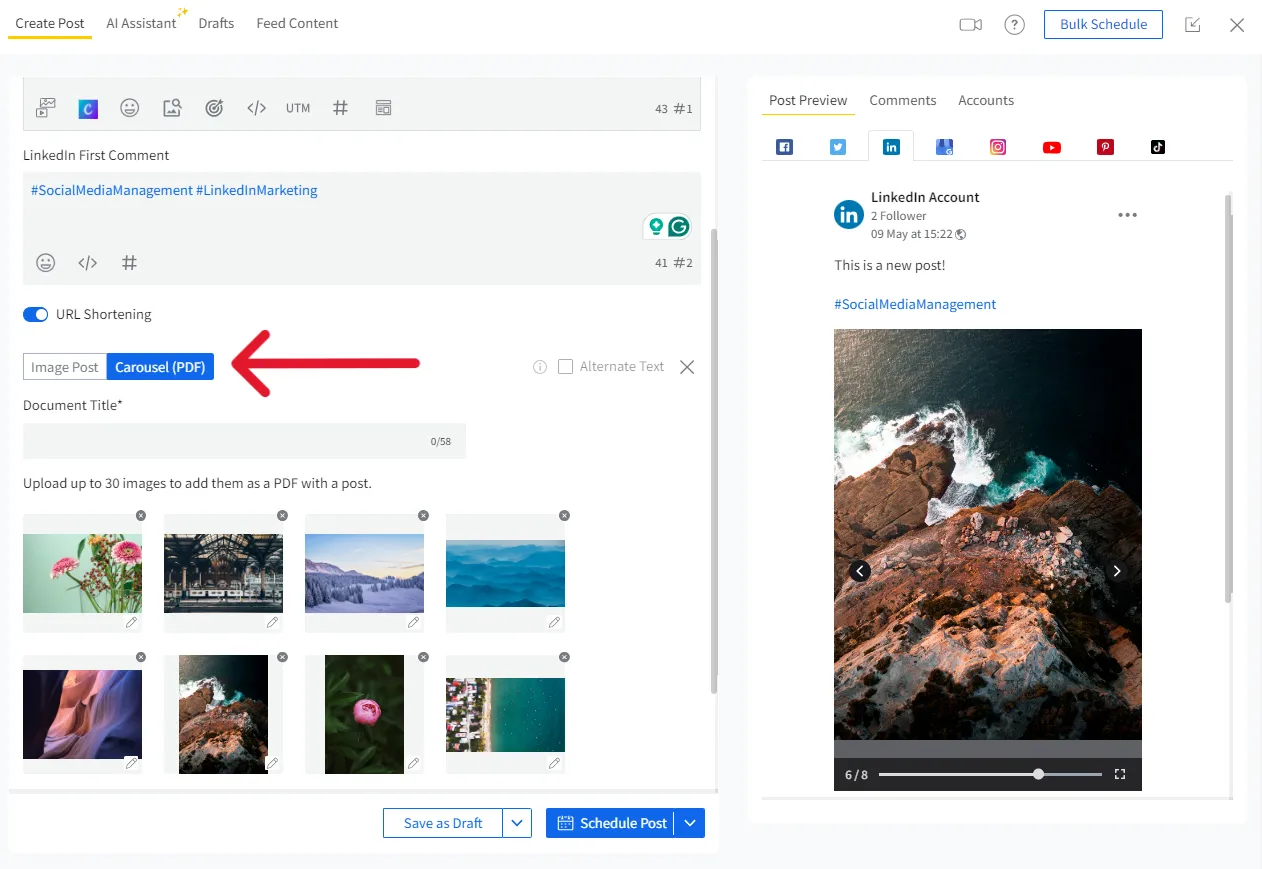
Step 5: Now, you can schedule a post for any suitable date and time in the future.
If you are a social media marketer who needs to schedule the entire month of content at once, the SocialPilot Bulk Scheduling Feature is for you. It helps you schedule multiple posts at once with just a few clicks.
Here’s how you can bulk-schedule on LinkedIn pages using SocialPilot:
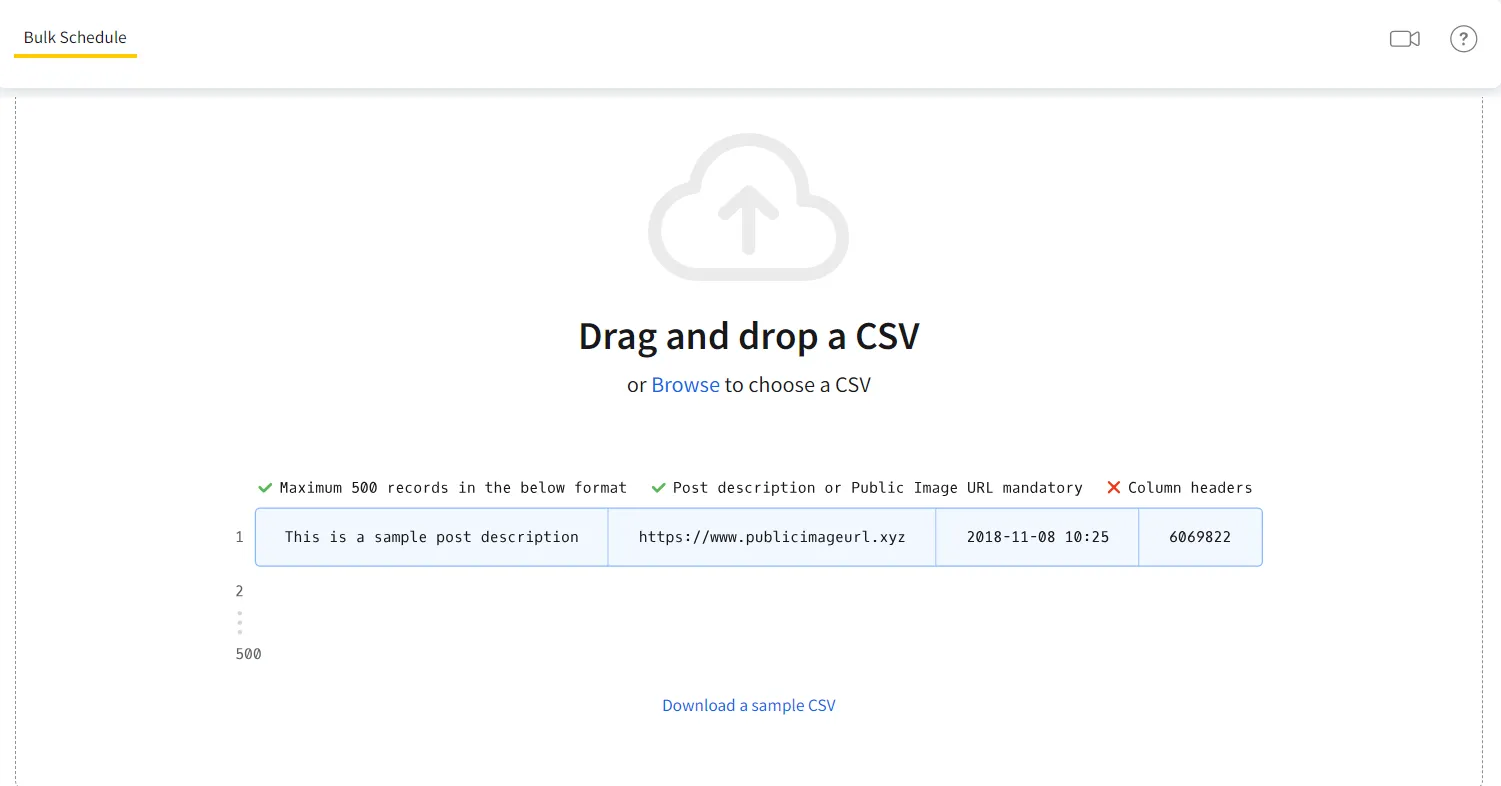
Step 1: Upload Your CSV File for Bulk Scheduling
Start by going to the Post menu and clicking on Bulk Schedule.
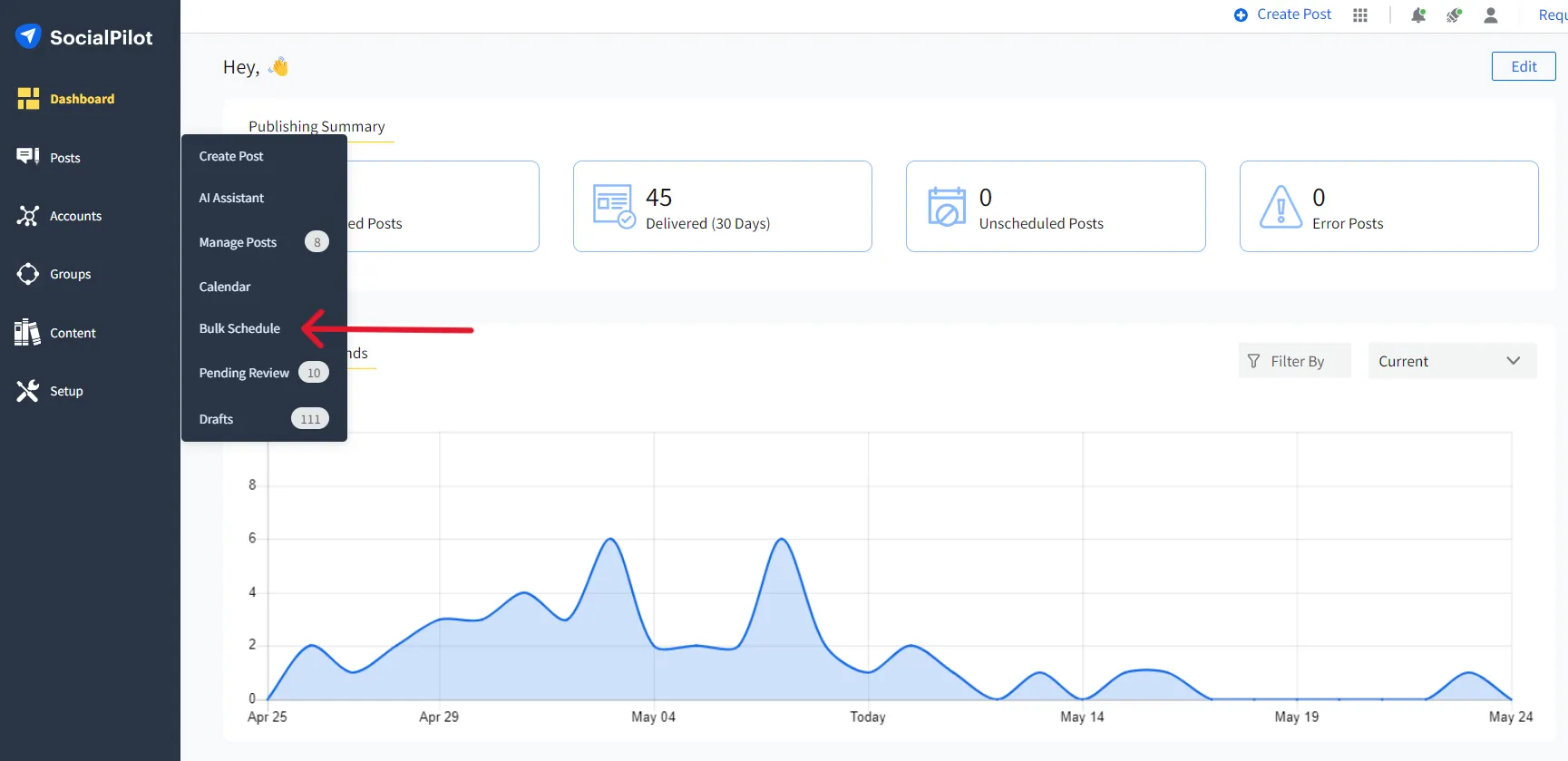
Step 2: CSV Upload
Now you can either download the CSV template linked at the bottom of the screen or just create your own according to the format shown. Once you have your CSV file ready, just upload it or drag and drop it into the dotted-line area.
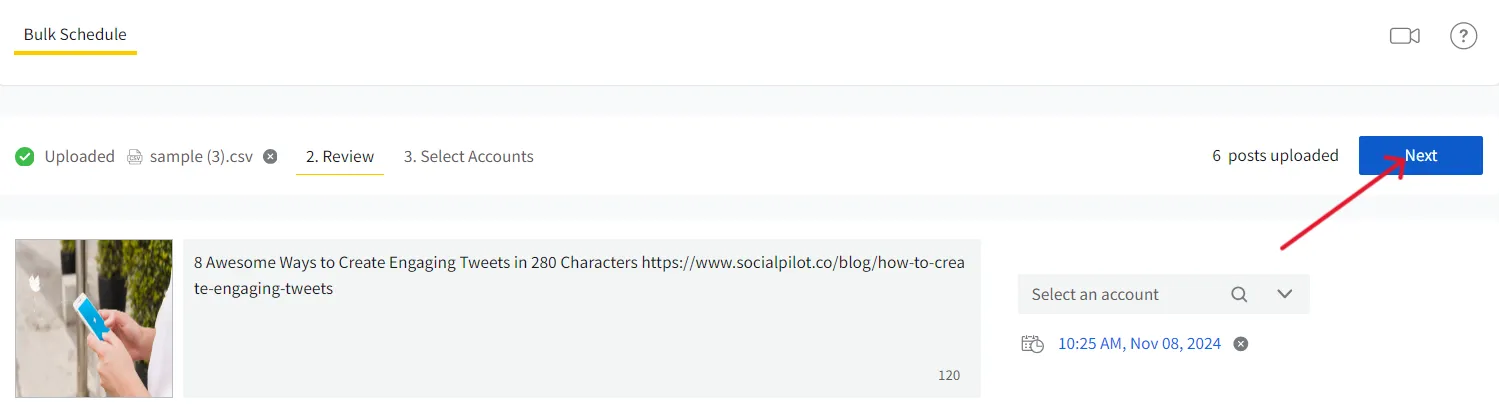
Step 3: Review Your Content
Now you will be able to see all your uploaded content in a queue. You can review all these posts and make necessary changes in them. Once you are done with your perusal, click on Next.
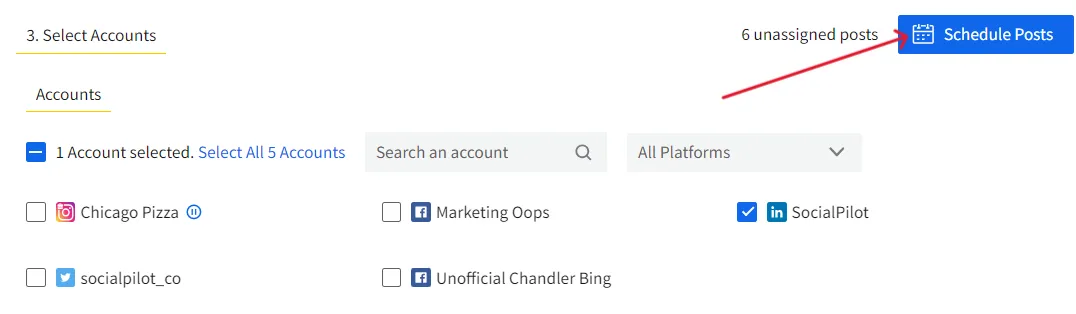
Step 4: Schedule the Posts
Now, you can select the LinkedIn accounts for the posts that have not yet been assigned an account. Now, you are all set. Click on the “Schedule post.”
This is how you can schedule months of content and free up your precious time for more demanding aspects of the job. Now, we’ll show you how to edit the scheduled posts on SocialPilot.
These days, we all create LinkedIn posts using ChatGPT, but what if ChatGPT can also schedule posts directly for you?
Enter SocialPilot’s AI Scheduler in ChatGPT, the world’s first social media AI agent that lets you generate social media posts, graphics, save them as drafts, and even schedule them using ChatGPT.
Just create your posts and graphics as you would normally do in ChatGPT, and then prompt the tool to schedule the post at your desired time or let it pick the optimal posting time for you.
With SocialPilot’s AI scheduler, you can also bulk schedule your posts by uploading a CSV file and prompting the tool to schedule all posts at once.
Curious to learn how it works? Check out this video:
Try SocialPilot AI Scheduler Today!!
Now let’s see where you can find and edit scheduled LinkedIn posts using SocialPilot:
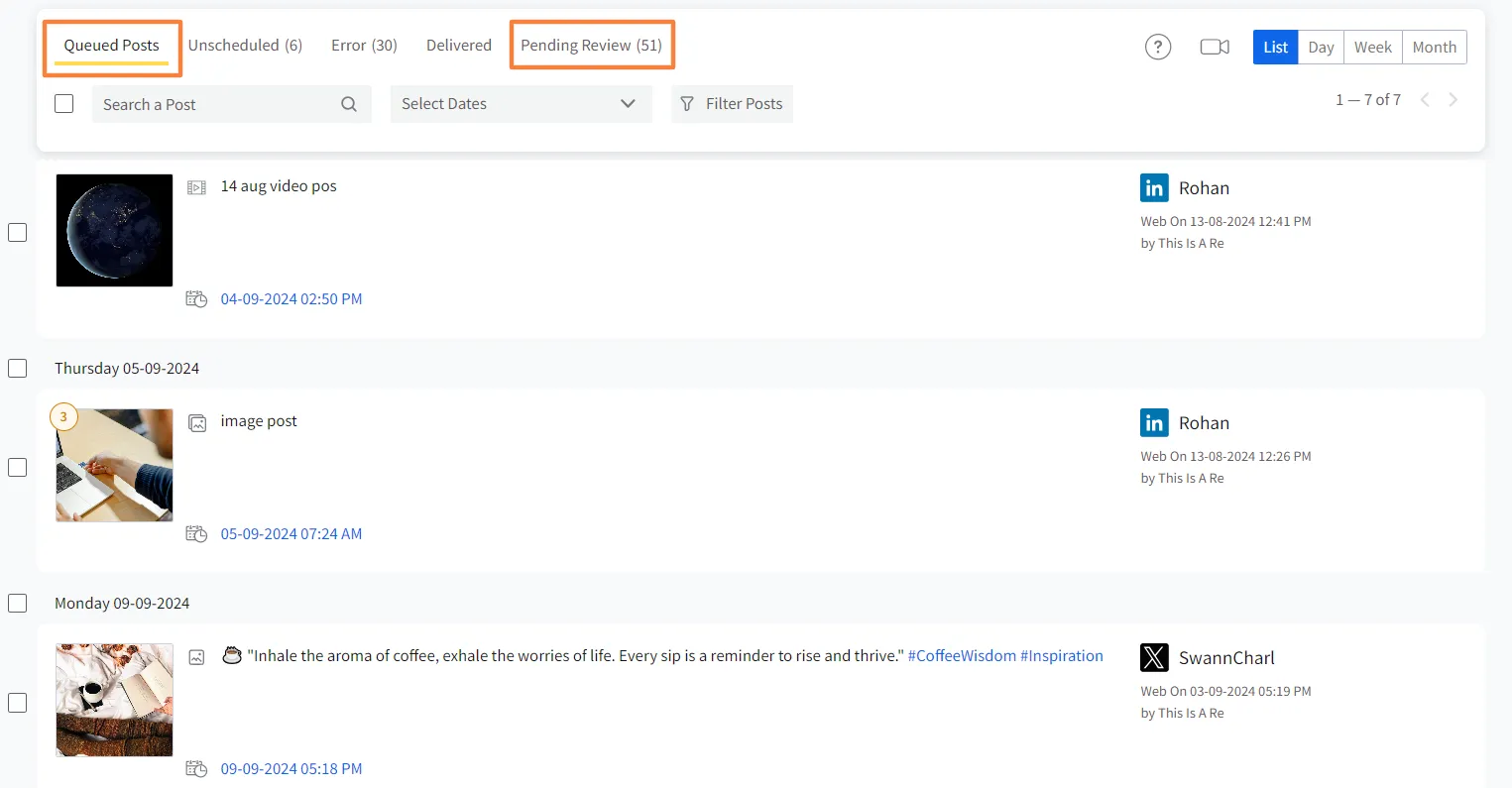
- Log into your SocialPilot account and select Manage Posts under Posts from the navigation bar.
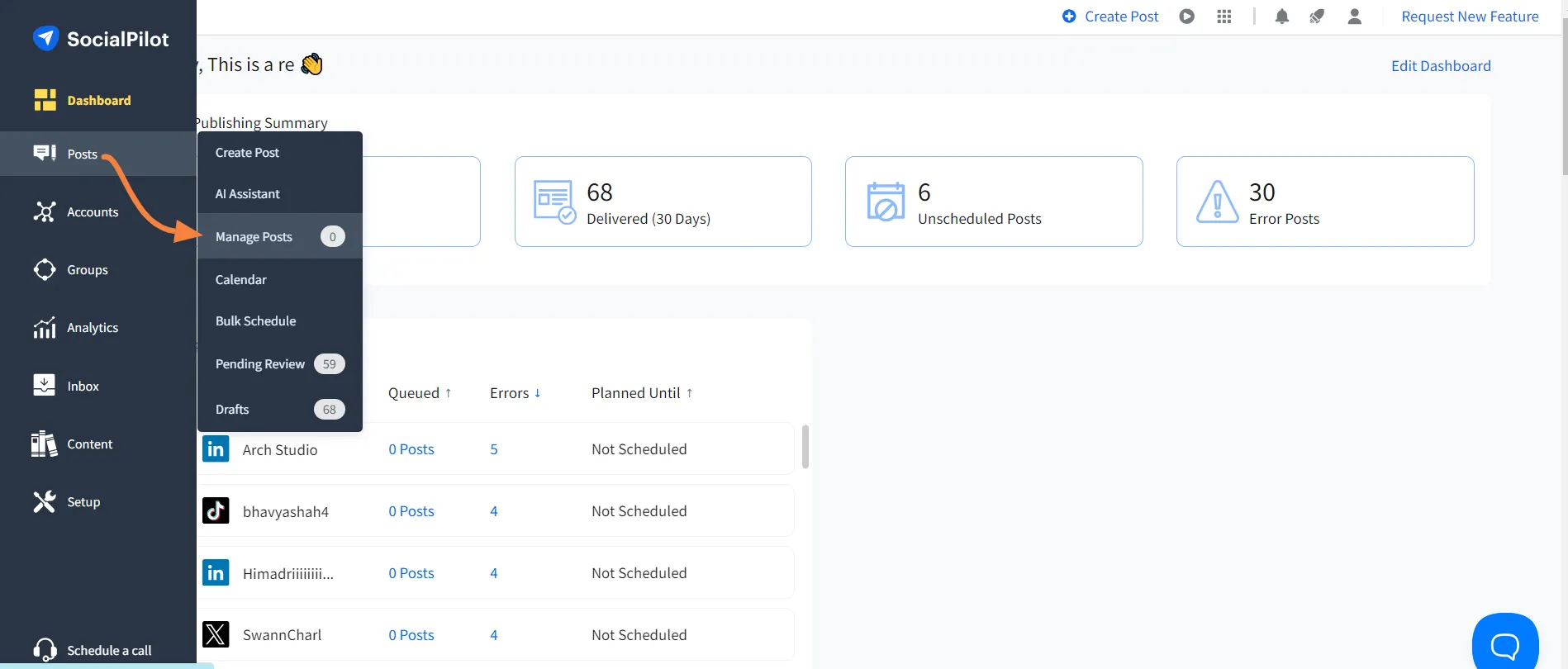
- Navigate to the appropriate list based on the post’s status, either the Queued Posts list or the Pending Review list if it still requires approval.
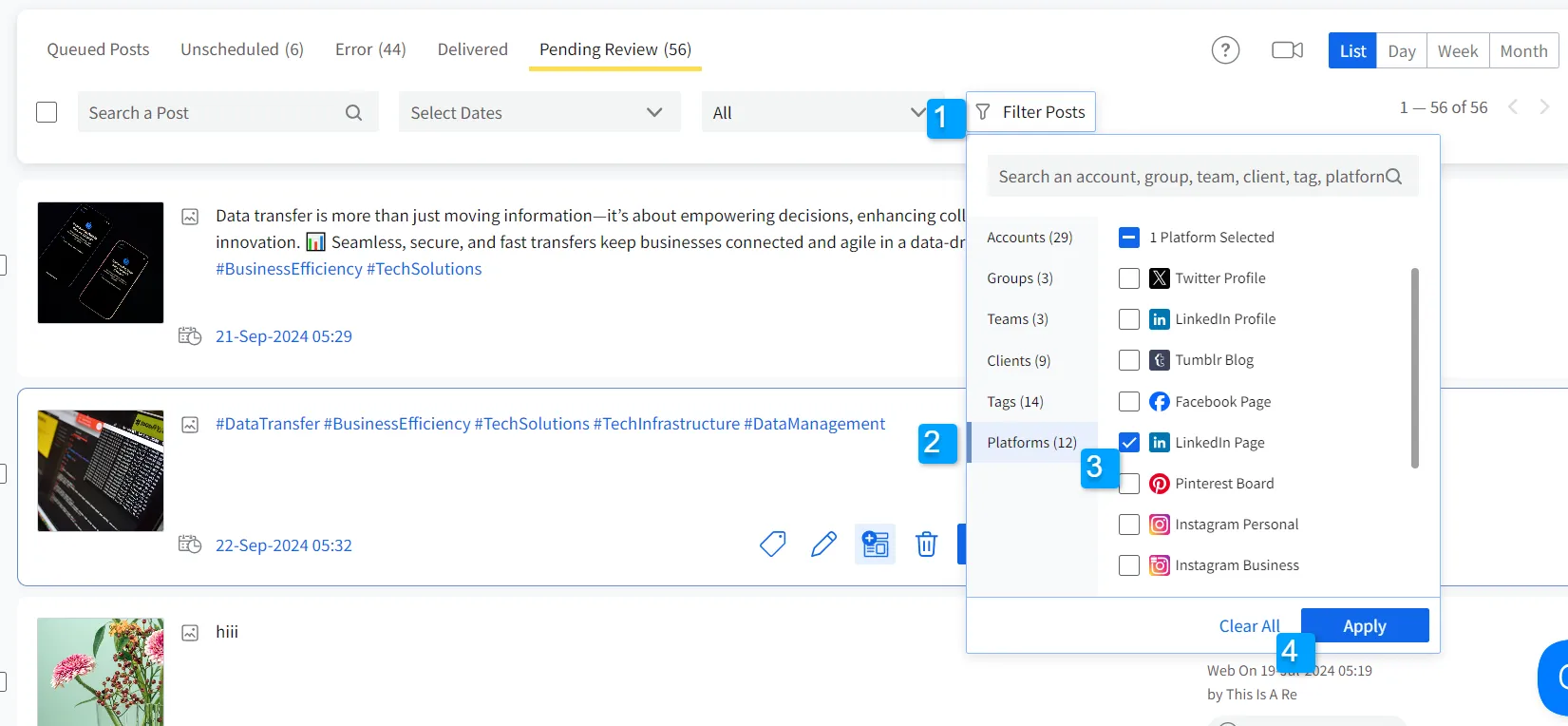
- Click on the Filter Posts button, choose Platform, select LinkedIn Profile and LinkedIn Page, and hit Apply. This will display only the posts scheduled for LinkedIn.
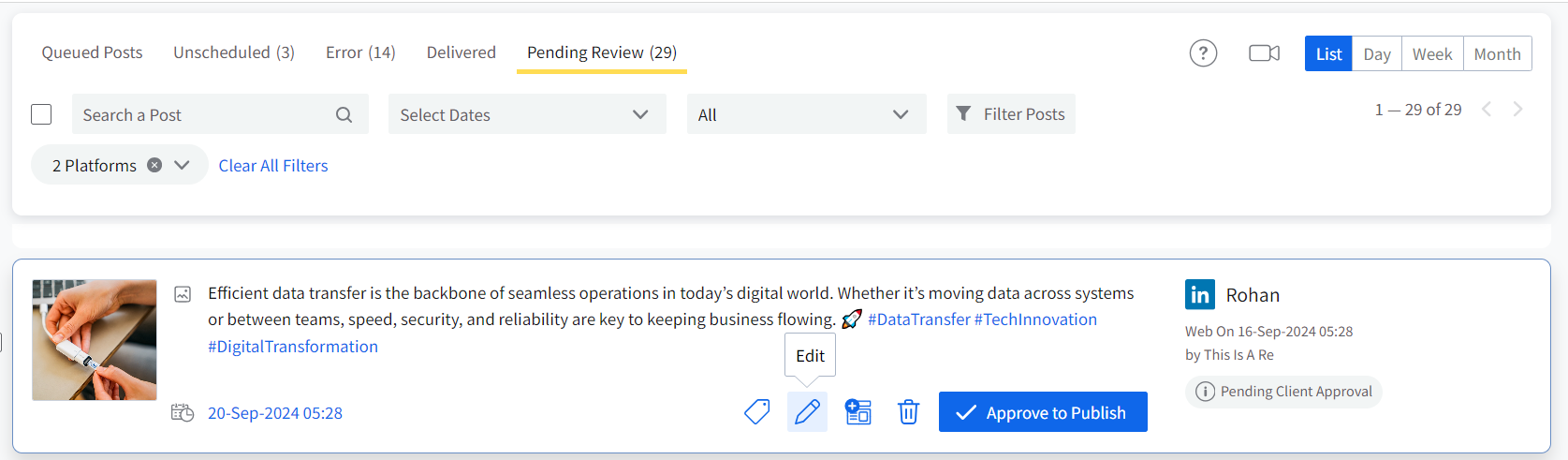
- Now that you have filtered the list, locate the LinkedIn post you want to edit and click on the Edit button beside it.
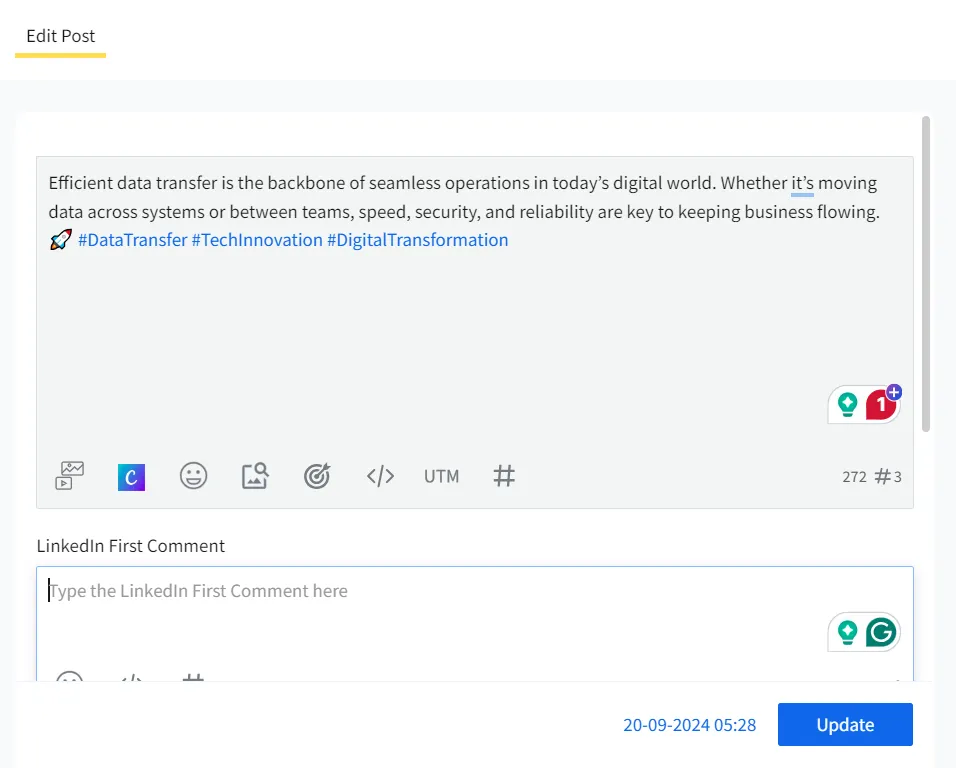
- Make changes in the content or the scheduled date, and click on update.
Even if you’ve scheduled posts in bulk, you can easily find them by following the steps above to edit and reschedule them.
Let us now learn how you can cancel or delete the scheduled post on SocialPilot
You first need to access the scheduled LinkedIn posts on Socialpilot and then delete them so they don’t get published. Here are the steps you must follow:
- Sign in to your SocialPilot account and select “Manage Posts” under the “Posts” section in the navigation bar.
- If the post is already approved, go to the “Queued Posts” list. If it hasn’t been approved yet, check the “Pending Review” list.
- Click the “Filter Posts” button, choose Platform, select LinkedIn Profile, LinkedIn Pages, and then click “Apply.”
- From the list of scheduled posts, find the one(s) you want to delete, click the three dots, select the delete icon, and confirm your action.
How to Schedule LinkedIn Posts on Mobile
There are two ways to schedule LinkedIn posts on mobile devices:
- Using the LinkedIn Native Application
- Using third party apps like SocialPilot
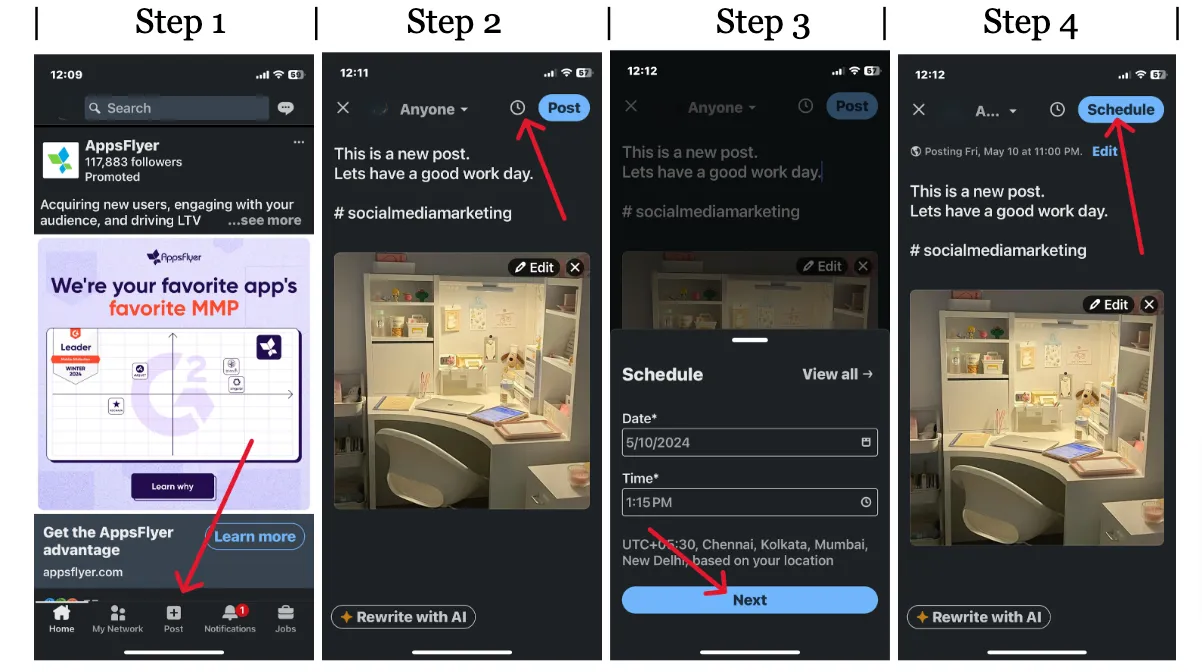
How to Schedule Posts on Mobile Using The LinkedIn App
Step 1: Open the LinkedIn Mobile App and Click “Post.”
Step 2: Compose the Post and Click on the “Clock Icon.”
Step 3: Select the Date and Time and Click “Next.”
Step 4: Finally, Click on “Schedule.”
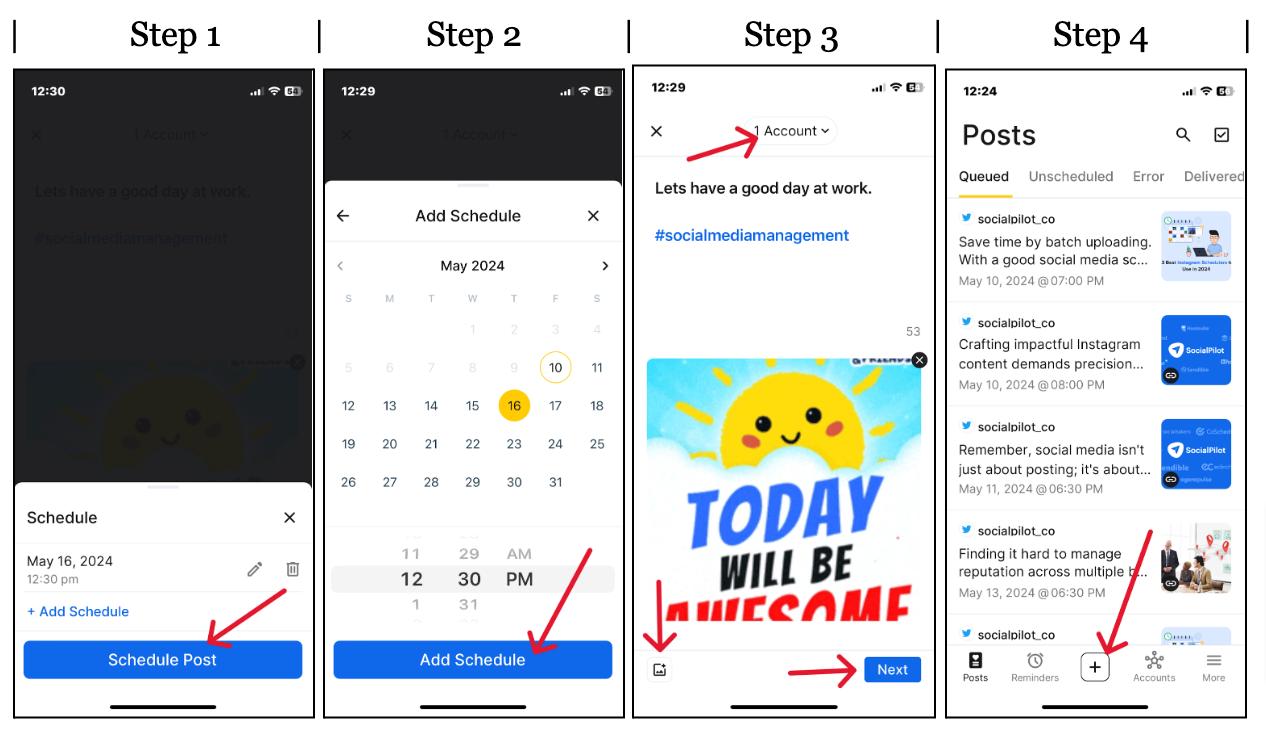
To enjoy the benefits of advanced scheduling and better social media management, download the SocialPilot application for IOS or Android and start scheduling your LinkedIn posts.
Here are the steps to follow:
Step 1: Log In to the SocialPilot App and Create a Post
Step 2: Add Media and Select Account
Step 3: Pick a Suitable Date and Time
Step 4: Schedule Your Post
Now, we’ve addressed all the ways to schedule LinkedIn posts, let us discuss some best practices that you must follow when scheduling posts on LinkedIn.
6 Best Practices To Schedule LinkedIn Posts
Here are some expert tips and tricks to make LinkedIn scheduling seamless and help you maintain a consistent LinkedIn presence:
1. Use a Scheduling Tool
The best practice for scheduling LinkedIn posts is to invest in a good social media scheduling tool. A smart, advanced scheduling tool like SocialPilot, which has features such as bulk scheduling and document publishing, can be a perfect match for your LinkedIn strategy.
2. Look for the Best Time to Post
The whole purpose of scheduling on LinkedIn is to increase post engagement and reach. This can only be possible when you optimize your post for perfect timing. Look for the best time to post on LinkedIn and schedule your posts on those time slots.
This will increase your chances of being seen by more people. This is the same as placing an ad during the peak watching hours on TV, so that more and more people see it.
3. Ensure Quality Control
Every post that you put on LinkedIn influences your professional reputation. When people start scheduling more content, oftentimes the quality gets compromised – typos may go unnoticed, the brand tone may become inconsistent, etc.
So, have a review system in place, keep your LinkedIn posts size in check, and always proofread, refine, and verify all facts before scheduling. Also, re-check the scheduled posts for formatting, links, and impact.
4. Plan Content In Advance
Having a content plan ready for the coming weeks is essential for maintaining a smooth scheduling workflow. Make sure your plan includes a balanced mix of different LinkedIn post types to keep your publishing schedule varied and engaging. The easiest way to maintain this balance—and ensure consistent posting—is by using a well-structured content calendar.
Want to see all your scheduled content in one place?
SocialPilot comes with an Intuitive Content Calendar that lets you plan your LinkedIn posts for weeks or even months ahead. You can see your everyday posts in one place, filter them based on different criteria, and even reschedule them easily with a simple drag and drop.
You can also jot down ideas, create checklists, set prompts for your team, and plan seamlessly to ensure all your posts align with your overall marketing strategy.
Try it for free today!
5. Duplicate Popular Content
After working so smartly with scheduling, you might also want to apply that smartness to analyzing your post performance. Analyze which posts are doing well and schedule the same or similar content again.
Understand how the LinkedIn algorithms work, which posts they favour, and leverage it by creating more similar content. You can also reschedule your best-performing posts after a decent gap. This way, you can increase your engagement on LinkedIn.
To make the most of this social platform, you can check out this guide that talks about LinkedIn marketing strategies and other tips that can help you grow your business.
6. Don’t Forget to Engage
After scheduling your content for a few weeks, you might think you have done your part, but blindsiding your audience will not get you the desired results. You need to stay active and engage with the followers rather than just posting and disappearing.
However, we know managing engagement is as complex as planning and posting on LinkedIn, but SocialPilot has you covered here, too. With features like Social Media Inbox, SocialPilot brings your entire inbox under one interface. From DMs to comments, you can check and respond to everything from one place.
When you follow these tried-and-tested tips, you are more likely to increase your engagement, and maximize the impact of your social media efforts.
It’s Time to Schedule Your First LinkedIn Post!
Once you crack the code to scheduling LinkedIn posts, no one can stop you from enhancing your digital reputation and maintaining a fresh, professional presence. But remember, the right tool and strategy can transform your LinkedIn activities from dull to interesting.
SocialPilot is a tool that promises all that and more. It not only has advanced scheduling features but also empowers content optimization with AI Pilot. When you schedule LinkedIn posts with SocialPilot, you build a pathway for better brand visibility.
Start your free trial of SocialPilot today and start scheduling for free!