You open LinkedIn to post one update, and the app looks different again. There’s a new video feed. Your analytics show numbers you’ve never seen. Someone in your feed has a verification badge you didn’t know you could get.
If you manage a brand or your own presence here, that pace is exhausting, because every change quietly shifts what gets reach and what gets ignored.
That’s the real reason to track new LinkedIn features and updates. It isn’t about chasing shiny tools. It’s that LinkedIn keeps moving the goalposts on distribution, and the people who notice first get the early reach before everyone else catches up.
So here are the LinkedIn features and updates worth your attention in 2026, what each one does, who it helps, and exactly how to put it to work. Some are brand new this year. Some shipped late last year and are only now hitting full reach. All of them are live and official.
The Biggest LinkedIn Updates in 2026 at a Glance
If you only have two minutes, this table covers the headline changes. The rest of the article goes deeper on each.
| Feature | What changed | Who it helps most |
| Vertical video and CapCut export | Full-screen mobile video feed plus two-tap publishing from CapCut | Creators, marketers |
| New post analytics | Saves, Sends, and in-network vs out-of-network reach | Creators, marketers |
| Conversational AI search | Find jobs, people, and leads by describing them in plain language | Everyone |
| Newsletters for all | Anyone can start a newsletter, now with video covers and email metrics | Creators, marketers |
| AI job search, Career Coach, Job Tracker | Describe-your-role search plus an all-in-one application manager | Job seekers |
| Verified identity and Company Page verification | Badges for people and for Premium business pages | Everyone, businesses |
| BrandLink video ads | Sponsored video inside premium publisher and creator content | Advertisers |
| Games and leaderboards | Daily puzzles with group and global rankings | Everyone |
| AI content moderation | LinkedIn limits reach on low-effort “AI slop” | Creators |
| AI data controls | Opt your activity out of LinkedIn’s AI training | Everyone |
1. Vertical Video and the Dedicated Video Feed
Who it helps: Creators, marketers, and brands trying to grow reach.
Video is the single biggest distribution story on LinkedIn right now. The platform reported that video viewership grew 36% year over year to roughly 154 billion views, a figure surfaced through Microsoft’s quarterly results and LinkedIn’s own creator updates.
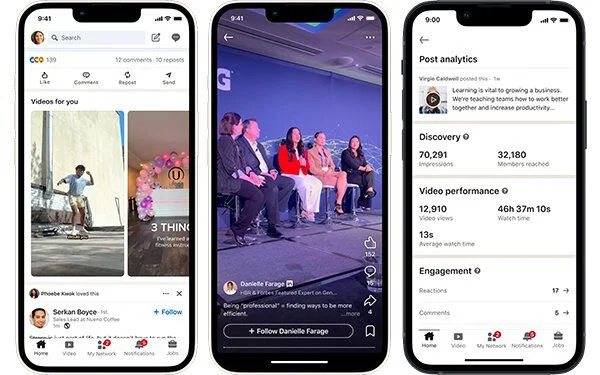
To match that demand, LinkedIn built a full-screen, swipeable video feed and a “Videos For You” section with personalized recommendations. Vertical video at 1080 x 1920 is getting a distribution boost, while square and horizontal clips are being nudged down the feed. The takeaway is simple. If your video is shot for a phone, it now takes up the whole screen and stops the scroll.
Two extra changes make video easier to ship. LinkedIn added playback speed controls so viewers can move at their own pace, and it partnered with CapCut so you can edit a clip and send it straight to LinkedIn in two taps. As Social Media Today reported, exported videos can be auto-considered for trending video topics, which gives small creators a real shot at discovery.
Why It Matters
Social media analyst Lindsey Gamble has pointed out that this growth is happening while most professionals still aren’t posting video. That supply gap is the opportunity. Less competition for the format LinkedIn is actively pushing means cheaper reach for the people who show up now.
How to Put It to Work
- Shoot one vertical clip a week at 1080 x 1920, framed for a phone, not a webcam.
- Lead with a hook in the first three seconds, since the new feed autoplays full screen.
- Edit in CapCut, then export straight to LinkedIn and add captions before publishing.
- Track which clips earn out-of-network reach and double down on those topics.
For the basics on what performs, our guide to LinkedIn video best practices walks through length, captions, and hooks.
2. Advanced Content Analytics with Saves, Sends, and Reach Splits
Who it helps: Marketers, creators, and brands focused on performance.
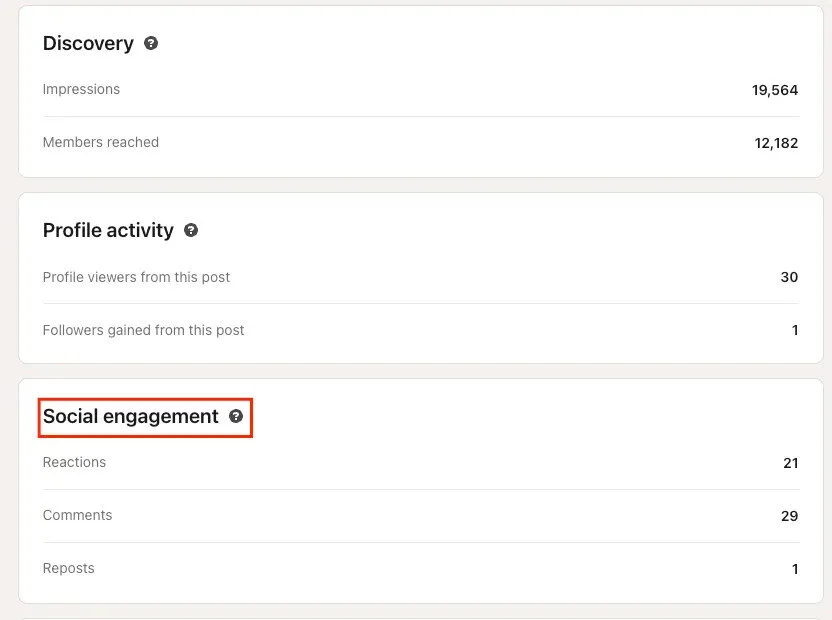
Likes were always a weak signal. LinkedIn now shows you the metrics that actually predict reach, right inside your post analytics.
- Saves tell you a post was useful enough to keep.
- Sends tell you someone shared it privately in a DM, which is the strongest endorsement on the platform.
- In-network vs out-of-network reach shows how much of your audience came from your connections versus strangers the algorithm chose to show.
Why It Matters
That last split is the one to watch. High out-of-network reach means the algorithm is actively pushing your post beyond your followers, which is exactly what you want when you’re growing. Saves and Sends tell you which topics earned enough trust to keep or share, so you stop guessing what to make next.
How to Put It to Work
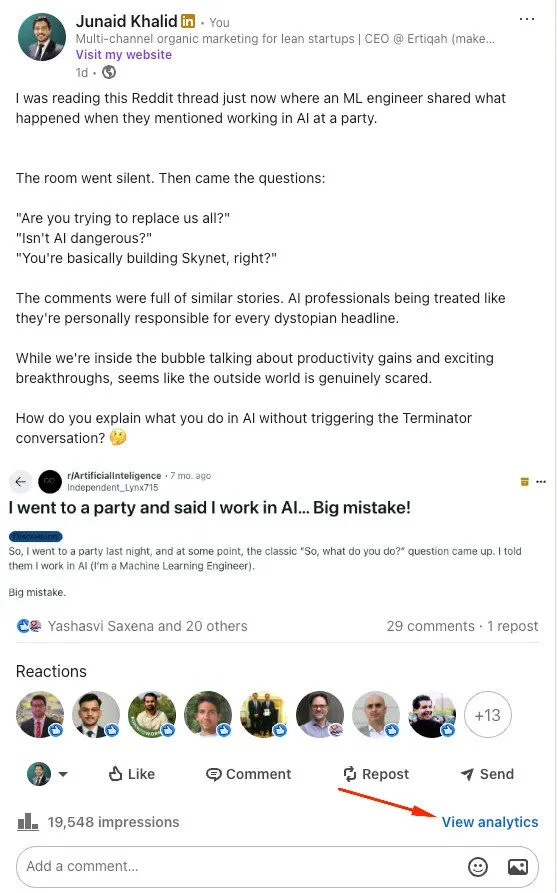
- In your analytics dashboard, sort posts by Saves or Sends over the past 30 days.
- Find your top two or three and look for the common thread. Topic, format, or length.
- Rebuild that style as a new post, a carousel, or a newsletter issue.
- For company pages, feed this data into your content calendar and schedule the winners with a social scheduling tool like SocialPilot.
Bonus: Use the numbers to test formats head to head, like vertical video versus static images, and watch the change in Save and Send rates. To take this further, see our guide to LinkedIn marketing strategies.
3. Conversational AI Search Across the Whole Platform
Who it helps: Recruiters, marketers, sellers, and anyone doing outreach.
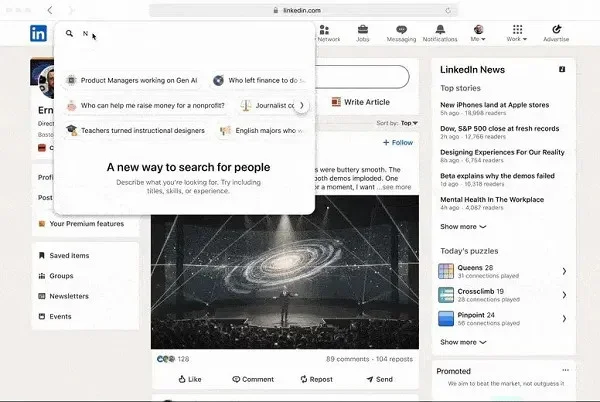
LinkedIn search used to reward exact keywords. Now you can describe what you want in a full sentence and let AI do the matching – Conversational AI Search. You can type something like founders in fintech near London who used to work with me and get a real list instead of a guessing game.
This rolled out globally to all users through early 2026, not just Premium members. The same conversational layer now powers job search and feed discovery, which is why so many of the updates below lean on AI. LinkedIn is rebuilding its core actions around natural language.
Why It Matters
The practical win is speed. You stop reverse-engineering filters and just ask. For sellers and recruiters, that turns prospecting into a normal question instead of a Boolean puzzle.
How to Put It to Work
- In the search bar, type a full sentence describing the person or role you want, not single keywords.
- Add context the AI can use, like industry, location, seniority, or a past shared employer.
- Refine in plain language. Ask it to narrow by company size or recent job changes.
- Save the strongest results to a list so you can act on them later.
Who it helps: Creators, marketers, and small brands building an audience.
Newsletters used to be locked behind creator mode and an invite. Now any member can start one, which makes recurring, subscribable content available to regular professionals and small brands for the first time.
Two upgrades make them worth running in 2026. You can add a video cover to a newsletter or article, and you now get email metrics like sends and open rate alongside on-platform views. That means a newsletter behaves a little like an owned email list that lives inside LinkedIn’s reach.
[Image: LinkedIn newsletter setup screen showing the video cover option and subscriber count] (Source: LinkedIn)
Why It Matters
A newsletter is the one format that pulls subscribers back on a schedule, instead of hoping the feed shows your next post. For a brand, it’s a low-effort way to build an audience you don’t have to rent from the algorithm every single day.
How to Put It to Work
- Pick one narrow theme you can publish on every two weeks without running dry.
- Set a clear cadence and name it around the outcome readers want, not your brand.
- Add a short video cover to lift the click rate from notifications.
- Watch open rate, and reuse your best-saved posts as newsletter issues.
If you’re short on angles, LinkedIn post ideas doubles as a newsletter topic bank.
5. AI Job Search, Career Coach, and the New Job Tracker
Who it helps: Job seekers, career switchers, and recruiters.
Job seekers got the deepest set of upgrades this year, and they’re all built on the same conversational AI.
- AI Job Search: lets you describe the role you want instead of stacking filters, and it suggests matches plus profile tweaks that fit.
- AI Career Coach: inside LinkedIn Learning, acts like a personal advisor that maps a path, flags skill gaps, and points to courses.
- New this year is the Job Tracker, an all-in-one dashboard for managing every application in one place, so you stop living in a spreadsheet.
Why It Matters
Even if you’re not job hunting, this matters for brands. The same coaching and tracking tools keep people opening the app daily, which means more eyes on the feed you’re posting into.

How to Put It to Work
- In the Job Search tab, enter a prompt like Hybrid marketing role with leadership growth and an analytics focus and see how the AI tailors results.
- Open LinkedIn Learning, then Career Coach, to explore learning paths for those roles.
- Use Job Tracker to keep every application, status, and follow-up in one view.
- Pair it with a strong profile, since the AI reads your headline, About section, and skills first.
Note: AI Career Coach and some advanced job tools sit inside LinkedIn Premium or LinkedIn Learning. A well-built profile is the foundation for all of it, and our walkthrough on building a LinkedIn profile covers the parts these tools read first.
6. Verified Identity for People and Company Pages
Who it helps: Everyone, and especially businesses fighting impersonation.
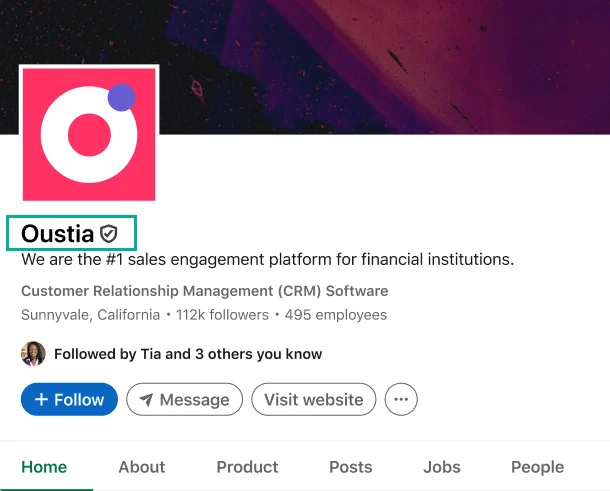
Trust is now a visible badge. Individuals can verify identity through a government ID, a work email, or Microsoft Entra, and the badge shows up under “About this profile.”
The bigger 2026 change is on the business side. Brands on a Premium Company Page plan are now eligible for a verification checkmark, so a company can prove it’s the real account and not a copycat.
Why It Matters
In a feed full of fake recruiters and copycat brand pages, that badge does real work. It tells a first-time visitor they’re in the right place before they read a single post, which lifts trust on cold reach.
How to Put It to Work
- For yourself, open Settings, then verifications, and confirm your identity through ID or a work email.
- For your brand, check whether your Premium Company Page plan now qualifies for the checkmark and apply.
- Once verified, mention it in your About section so visitors notice the signal.
Who it helps: Advertisers and B2B marketing teams.
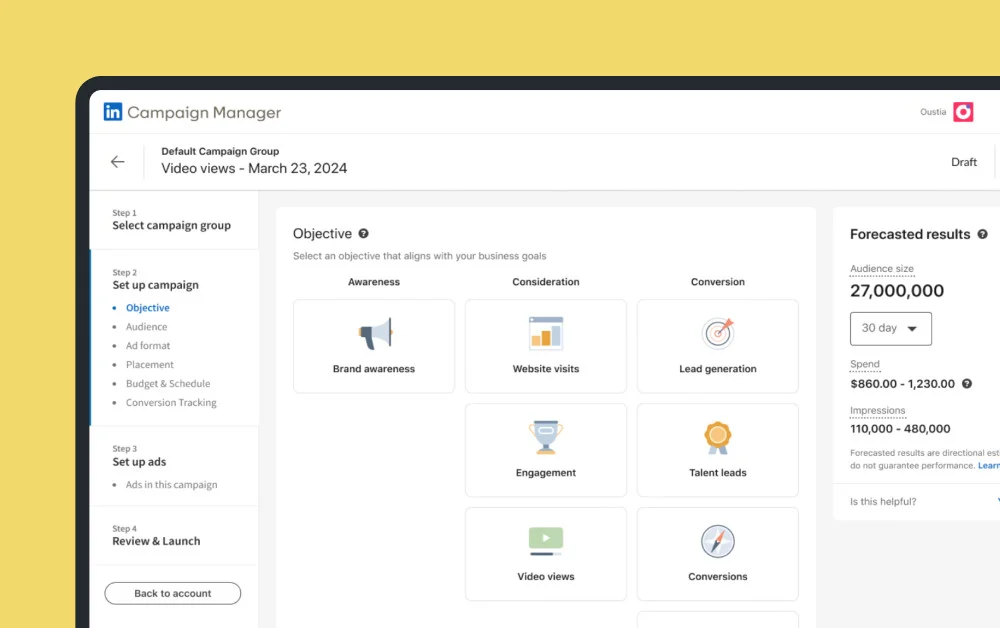
For advertisers, the headline format is BrandLink, LinkedIn’s in-stream video ad that runs alongside premium publisher and creator video instead of sitting alone in the feed. LinkedIn has also expanded the program with creator-led shows from major brands.
Why It Matters
The performance case is strong. According to LinkedIn’s BrandLink page, the format delivers 130% higher completion rates and makes viewers 18% more likely to convert after seeing a BrandLink ad before a lead form, compared with standard LinkedIn video ads.
How to Put It to Work
- In Campaign Manager, build a vertical video creative shaped for full-screen viewing.
- Test BrandLink against a standard video ad with the same creative and audience.
- Compare completion rate and lead-form conversion, not just impressions.
- Shift budget to BrandLink only once the completion and lead numbers beat your baseline.
8. In-App Games and Leaderboards
Who it helps: Everyone, plus brands watching engagement windows.
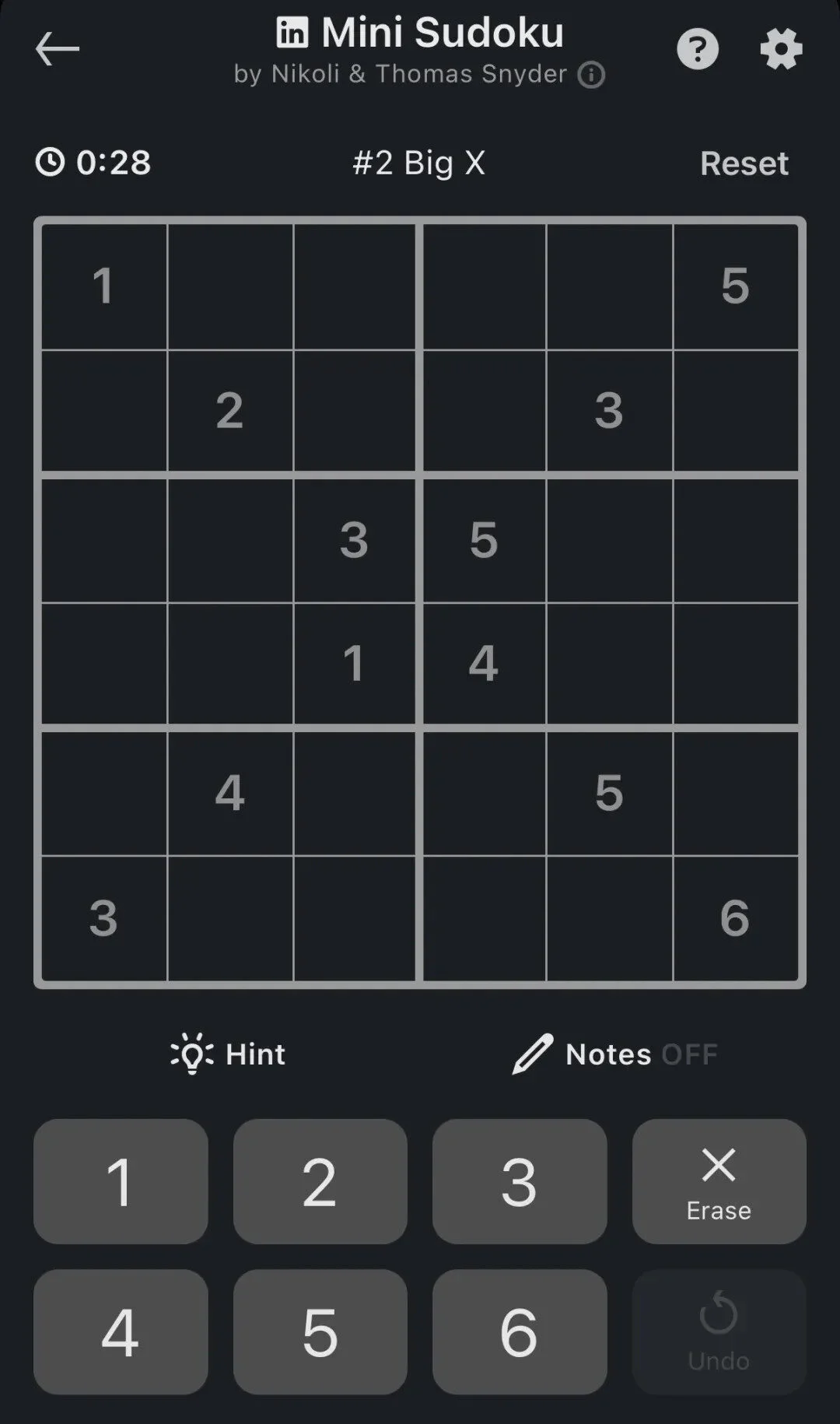
LinkedIn keeps adding daily puzzles, and the lineup now runs well past the original Sudoku, Queens, Crossclimb, and Pinpoint into newer titles. The point isn’t the games themselves. It’s the daily habit they build, plus the group and global leaderboards that turn a quick puzzle into a reason to message a coworker.
Why It Matters
Games pull people into the app at predictable moments, so the windows when your audience is online are widening. That changes when your posts have the best shot at early engagement.
How to Put It to Work
- Note the times your audience tends to open the app, often mornings and lunch breaks.
- Schedule your highest-value social media posts into those windows.
- Use the leaderboard as a light icebreaker with connections you want to warm up.
Pair this with what you know about timing from our guide to LinkedIn marketing strategies.
9. AI Content Moderation Against “AI Slop”
Who it helps: Creators and brands who write with a real voice.
As AI writing flooded the feed, LinkedIn started limiting reach on low-effort, obviously AI-generated posts, internally described as fighting “AI slop.” The platform reads signals that a post was mass-produced and quietly holds back its distribution.
Why It Matters
This is good news if you write like a human. The bar for standing out just dropped, because generic AI filler is getting suppressed automatically.
How to Put It to Work
- Use AI to draft and speed things up, then rewrite it in your own voice.
- Add one specific example, number, or story only you could tell.
- Cut hollow openers and clichés, since those are the easiest signals to flag.
10. User Control Over Your AI Data
Who it helps: Anyone managing a brand, a reputation, or client accounts.
If you’d rather your activity not train LinkedIn’s AI, you can turn that off. The setting decides whether your posts and behavior feed the models, and it takes about 30 seconds to change.
[Image: LinkedIn Settings under Data Privacy showing the “Data for Generative AI Improvement” toggle] (Source: LinkedIn)
How to Put It to Work
- Open Settings & Privacy, then Data Privacy.
- Select Data for Generative AI Improvement.
- Switch it off, and repeat on any client or company accounts you manage.
Note: This doesn’t change your reach. It only controls whether your data trains LinkedIn’s AI.
More LinkedIn Features Updates You Shouldn’t Miss
Beyond the major feature launches, LinkedIn has rolled out several smaller enhancements that can improve content creation, networking, and day-to-day productivity.
| Update | What it does |
| GIF comments | React and reply with GIFs in comments |
| “Actively reviewing applications” status | Job posts show when a recruiter is actively reading applicants |
| Connected Apps skills | Verify technical skills through integrations with supported apps |
| Premium All-in-One for SMBs | A small-business plan bundling Premium features in one subscription |
| Live streaming change | Every live broadcast must now be tied to a scheduled event before it starts |
Which LinkedIn Features to Try First Based on Your Goal
You don’t need all of these at once. Match the feature to what you’re actually trying to do.
| Your goal | Start with |
| Grow reach fast | Vertical video and the new video feed |
| Understand what’s working | Saves, Sends, and the reach split in analytics |
| Build a loyal audience | A newsletter with a video cover |
| Win trust quickly | Identity and Company Page verification |
| Find people or leads | Conversational AI search |
| Run paid campaigns | BrandLink video ads |
| Land a job | AI Job Search, Career Coach, and Job Tracker |
More Features, More Opportunities
LinkedIn’s latest updates show how quickly the platform is evolving. What started as a place to network and find jobs has become a powerful platform for creators, professionals, and brands to build authority, grow communities, and generate business opportunities.
From AI-powered content tools and richer analytics to improved video experiences and smarter engagement features, LinkedIn is giving users more ways to create meaningful content and reach the right audience. The opportunity isn’t just to try every new feature, it’s to use the right ones consistently.
That’s where your workflow matters. Managing multiple content formats, profiles, and publishing schedules can quickly become overwhelming. With SocialPilot plans, you can plan, schedule, and analyze your LinkedIn content from one place, helping you stay consistent without adding more work to your day.
The tools are here. The opportunity is growing.